

Applications created using the Spatial Reality Display Plugin for Unity will run on the Spatial Reality Display if there is one connected to the PC, but you can set how the application will behave when it is run on a PC with no Spatial Reality Display connected.
Prerequisites
- Have completed the setup of the Spatial Reality Display (see Setup Spatial Reality Display Settings).
- Have the Spatial Reality Display Plugin imported to your Unity project (see Set up for Unity).
Set behavior with no Spatial Reality Display
Open Edit > Project Settings... > Spatial Reality Display in the Unity project where the Spatial Reality Display Plugin for Unity is installed, and set the following in Behavior with no Spatial Reality Display.
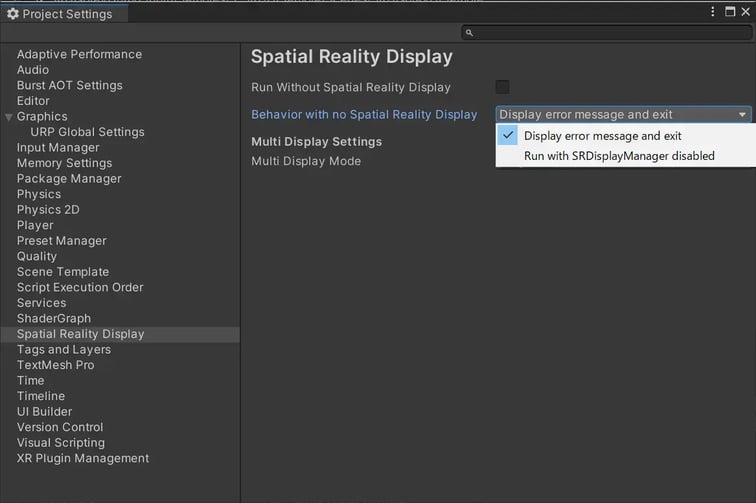
Display error message and exit
The application will close if no Spatial Reality Display is connected to the PC.
Before the application closes, an error message reflecting the connection status of the Spatial Reality Display will be displayed. For more information on error messages, please refer to the Error Message List.
Run with SRDisplayManager disabled
The application will run even if no Spatial Reality Display is connected to the PC.
SRDisplayManager will be disabled and will not work during execution. Please note that the camera attached to SRDisplayManager will not function either, so applications using this setting will need to prepare a separate camera for when the Spatial Reality Display is not connected to the PC.
Differences compared to Run Without Spatial Reality Display mode
This setting is separate from the Run Without Spatial Reality Display setting.
- In Run Without Spatial Reality Display mode, the application will run without using the Spatial Reality Display even if a Spatial Reality Display is connected to the PC.
- Behavior with no Spatial Reality Display sets the behavior of the application when no Spatial Reality Display is connected. If a Spatial Reality Display is connected to the PC, the application will run normally on the Spatial Reality Display regardless of the setting value.
- This setting is disabled when Run Without Spatial Reality Display is checked in Edit > Project Settings... > Spatial Reality Display.


