

This section describes the project settings relating to Multi Display Mode.
Prerequisites
- Have completed the setup of the Spatial Reality Display (see Setup Spatial Reality Display Settings).
- Have the Spatial Reality Display Plugin imported to your Unity project (see Set up for Unity).
Multi Display Settings
After importing the Spatial Reality Display Plugin to your Unity project, open Edit > Project Settings... > Spatial Reality Display, and set the following in Multi Display Settings.
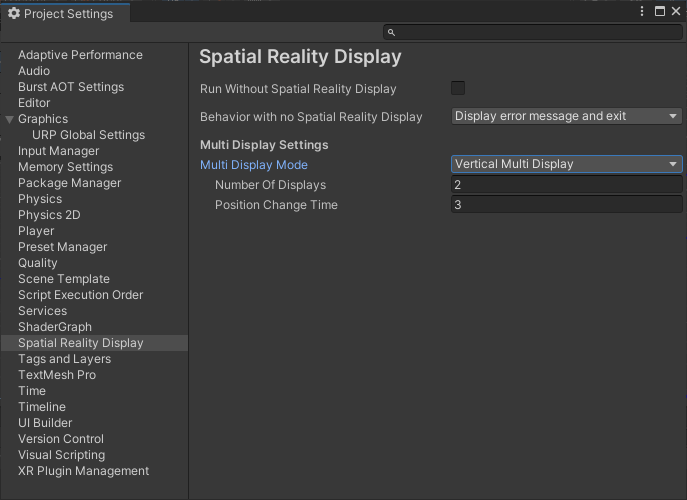
Multi Display Mode
Select whether to output to multiple or to a single Spatial Reality Display.
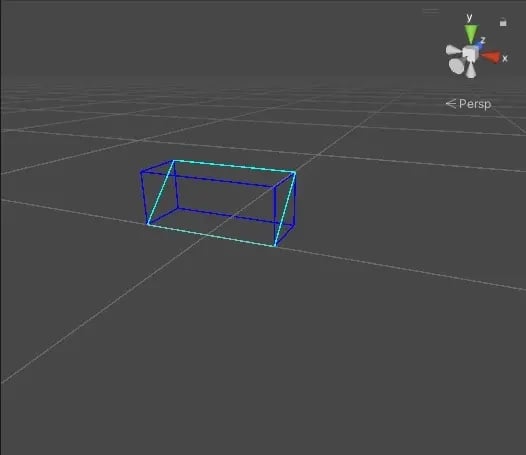
- Single Display / Duplicated Output
Select this mode for applications using a single Spatial Reality Display. If Duplicated Output is selected in Spatial Reality Display Settings, the application will be displayed simultaneously to all Spatial Reality Displays you have set up.
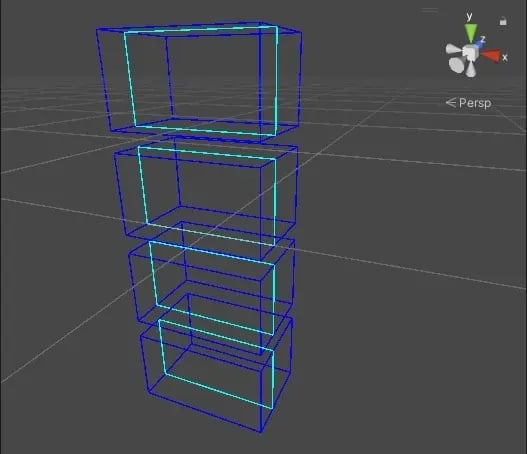
- Vertical Multi Display
Select this mode to create portrait-oriented applications that uses the Spatial Reality Displays arranged verically.
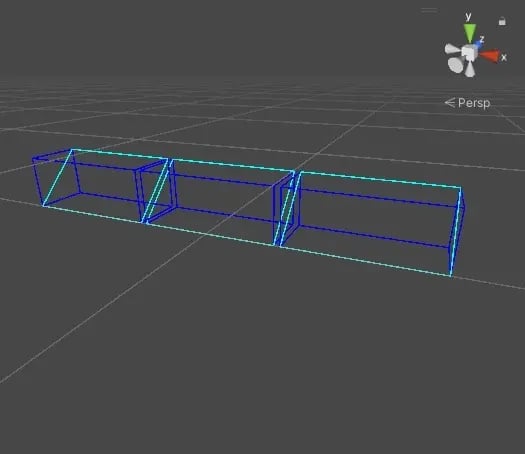
- Horizontal Multi Display
Select this mode to create landscape-oriented applications that uses the Spatial Reality Displays arranged horizontally.
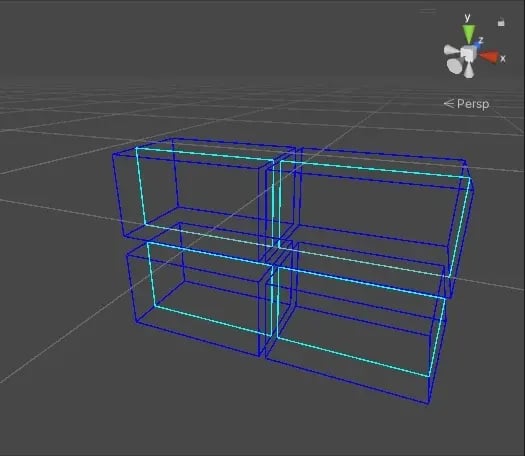
- Grid Multi Display
Select this mode to create applications that are suitable for a large screen that use the Spatial Reality Displays arranged in a 2 by 2 grid pattern.
Number Of Displays
Specify the number of Spatial Reality Displays you want to use with the application.
- Cannot be set for Single Display / Duplicated Output. The number of Spatial Reality Displays used will depend on the setting in Spatial Reality Display Settings; for Single Display it will be one Spatial Reality Display, and for Duplicated Output it will be all Spatial Reality Displays that have been set up.
- Up to 4 Spatial Reality Displays can be specified for Vertical Multi Display.
- Up to 3 Spatial Reality Displays can be specified for Horizontal Multi Display.
- Cannot be set for Grid Multi Display. Fixed to 4 Spatial Reality Displays in total, two vertically and two horizontally.
Position Change Time (sec)
The SRDisplay GameView can only be displayed on one Spatial Reality Display at a time. To counter this limitation, when running an application in Unity Editor's PlayMode, the SRDisplay GameView will switch between the different Multi Display screen positions at regular intervals. This setting allows you to specify this time interval.
- This setting is only used during development inside the Unity editor and does not affect the behavior of the built application.
- This cannot be set for Single Display / Duplicated Output.
Notes on Multi Display Mode Settings
- RunWithout mode and Multi Display Mode cannot be used at the same time. If Run Without Spatial Reality Display is active, the Multi Display Settings will be disabled.
- Multi Display Mode is only available for ELF-SR2. If you are creating an application that is also meant to run on ELF-SR1, select Single Display / Duplicated Output for Multi Display Mode.


