

This article explains how to create an application that is displayed content on multiple Spatial Reality Displays.
Prerequisites
- Have completed the setup of the Spatial Reality Display (see Setup Spatial Reality Display Settings).
- Have the Spatial Reality Display Plugin imported to your Unity project (see Set up for Unity).
Add the SRDisplayManager
Refer to Create your simple app "Hello cube!" to place the SRDisplayManager Prefab in the scene.
Configure your project for Multi Display Mode
Set your project to the Multi Display Mode of your choice. For more information on the different modes, see Project Settings for Multi Display Mode.
Please make sure that the SRDisplayManager GIZMO that corresponds to the Multi Display Mode and number of displays you have set is displayed in the Scene view.
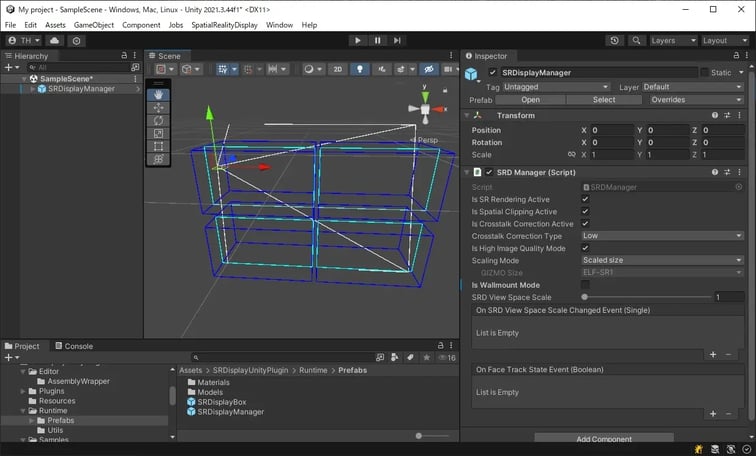
Create your application
Create your application by using the SRDisplayManager GIZMO as a guide when placing objects in the scene.
During development, you can check the Multi Display view on a single Spatial Reality Display by displaying the SRDisplay GameView and using the Unity Editor's PlayMode.
Notes on creating applications that support Multiple Display
- You can develop with ELF-SR1 connected, but if you try to display the SRDisplay GameView on ELF-SR1, it may not be displayed correctly because ELF-SR1 does not support Wallmount mode. Please use ELF-SR2 if possible.
- OpenGL is not supported. Please configure the Graphics API to Auto, Direct3D11, or Direct3D12 instead.
- Having multiple SRDisplayManagers in a single scene may cause the application to not function properly. Make sure you have only one SRDisplayManager in your scene.
- Shadows may not display correctly. If this happens, turn off the Spatial Clipping.


