

On this page, I’ll explain how to display the second screen. You can also try it out with the sample included in the Plugin.
Prerequisites
-
Setup your Spatial Reality Display, if not, see: Setup Spatial Reality Display, Setup Spatial Reality Display Settings
-
Set up your Unity project installed SRDisplay UnityPlugin, if not, see: Set up for Unity
How to Display the Second Screen
Refer to Create your simple app "Hello cube!" to place the SRDisplayManager Prefab.
To display the second screen, first call Init2DView() on the SRDisplayManager. Then, obtain Spatial Reality Display2DView.
Use Show(true) to display the second screen.
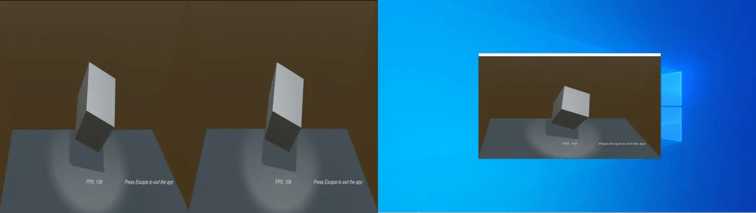
To hide the second screen, set it to false.

In the sample, the F5 key is assigned for toggling display/hide of the second screen.
How to display the Second Screen in Full Screen
You can display the second screen in full screen.
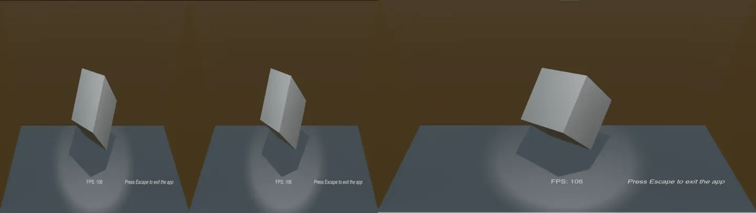
To revert from full screen, use:
In the sample, you can check this using the F6 key (toggle full screen).
How to Set Images for the Second Screen
You can configure images for display, including left-eye images, right-eye images, and mixed images on the Spatial Reality Display.
Set the left-eye image.
Set the right-eye image.
Set the mixed image.
ELF-SR2:
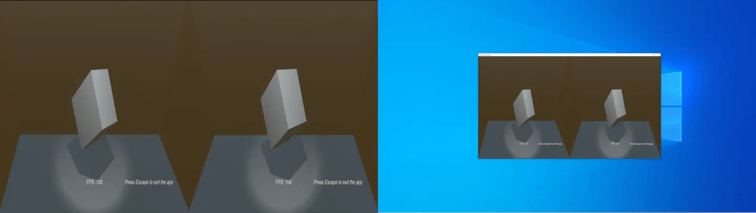
ELF-SR1:
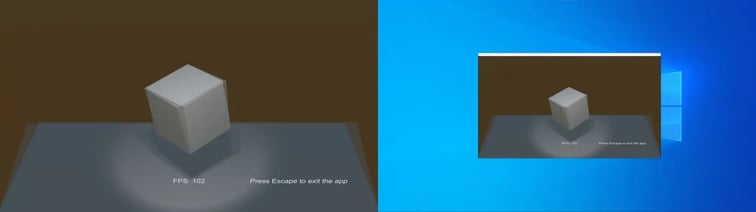
In the sample, you can switch between the texture types using the F7 key.
Set a custom texture.
Starting from SDK 2.4.0, you can also display the texture of your choice (CustomTexture)。
To display a custom texture, call SetSourceTexture() with the Spatial Reality DisplayTextureType.Custom parameter, and assign the texture you want to display to CustomTexture.
For example, if you want to place a camera in the scene and display the image from that camera on the Second Screen, your implementation might look like this:
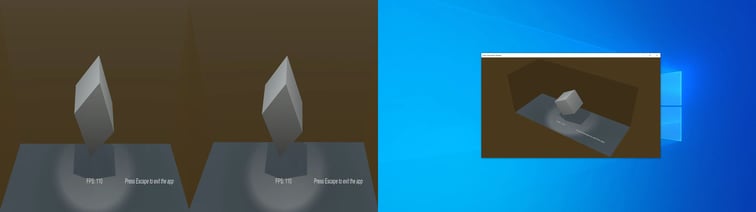
See Sample 6 for an example of how to use CustomTexture.


