

Let's get started with Spatial Reality Display app in Unity!
Prerequisites
- Have completed the setup of the Spatial Reality Display (see Setup Spatial Reality Display Settings).
- Connect your Spatial Reality Display to PC.
- Configure the settings of your Spatial Reality Display.
- Install Spatial Reality Display Settings.
- Installed UnityHub and UnityEditor (see: Download Unity).
- Currently supported Unity versions: Unity 2022.3, Unity 6 and Unity 6.3.
Create a new Unity project with Spatial Reality Display Plugin for Unity
-
Download latest srdisplay-unity-plugin.unitypackage
-
Create a new Unity project
Here, create a 3D project for the Universal Render Pipeline (URP).
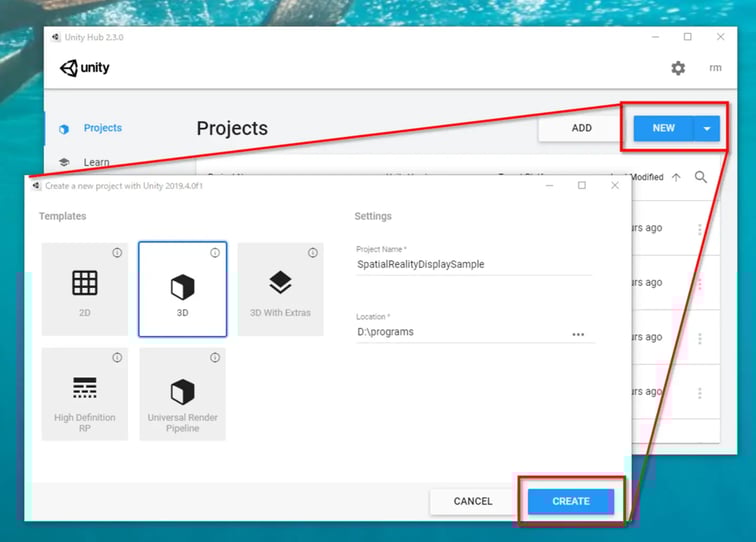
- Import Spatial Reality Display Plugin for Unity
- Select Assets > Import Package > Custom Package and select srdisplay-unity-plugin.unitypackage that you downloaded

Or you can drag & drop srdisplay-unity-plugin.unitypackage to Project in the UnityEditor, also. -
Click Import in the Import Unity Package dialog
Make sure that all package options are checke
Open the sample scene
-
Open SRDisplaySimpleSample scene in Assets / SRDisplayUnityPlugin / Samples / 1_SRDSimpleSample / Scenes
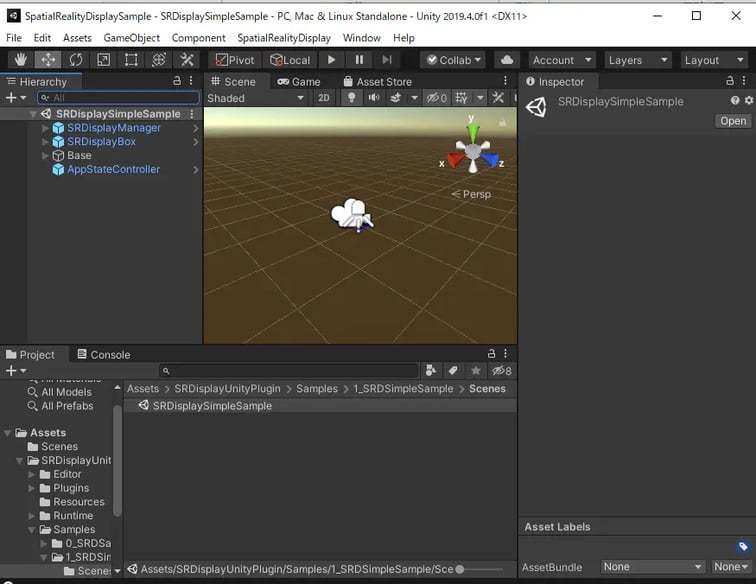
- If the architecture of the Unity project is not Intel 64-bit, the plugin will change the architecture to Intel 64-bit automatically. When the following dialog window appears, click OK to switch to the correct architecture.
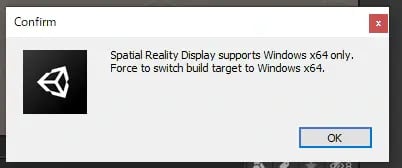
Build and run the Spatial Reality Display app
- Configure Project Settings from Edit > Project Settings...
- Set the VSync Count for all Quality Levels to Don't Sync (See: Minimize the latency for good user experience in Tips and Constraints
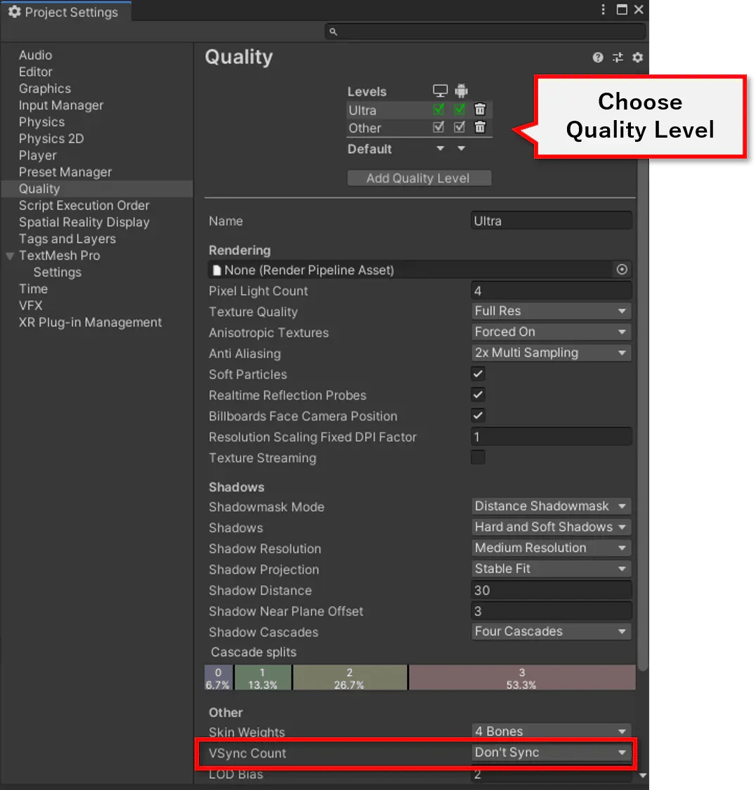
- Open Build Settings dialog from File > Build Settings
- Configure settings
- Click Add Open Scene and make sure that SRDisplaySimpleSample is added in Scenes In Build
- Make sure that Architecture is Intel 64-bit
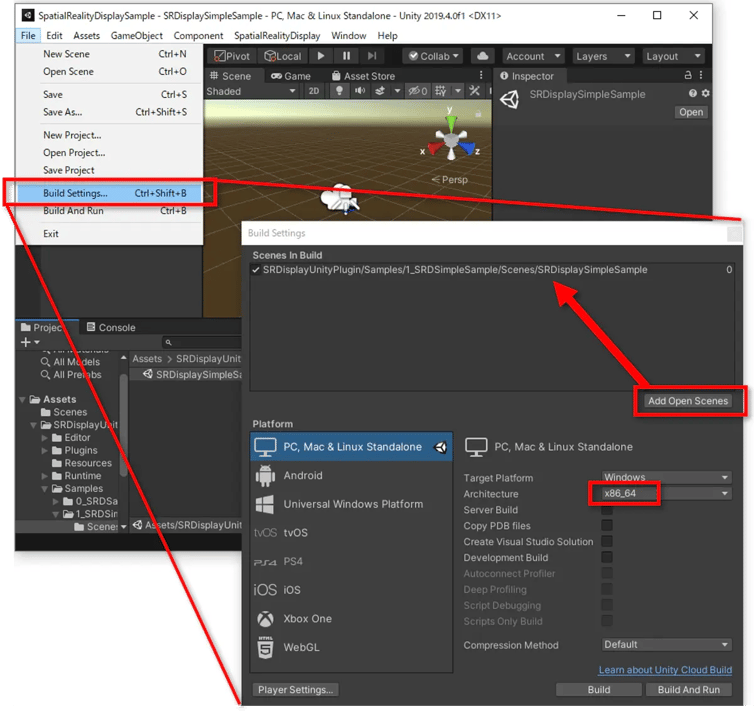
- Click Build and choose the folder where you want to save the app.
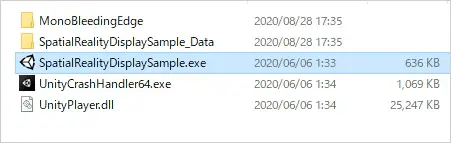
- Unity will create an executable file in that folder. Click on that file and it will launch the content on the Spatial Reality Display.


