

Connecting to a PC or Smartphone
Follow the steps below to connect Spatial Reality Display ELF-MN1(ELF-MN1) to a Windows PC or smartphone. The necessary ports are located on the base on the back of the the main unit. Refer to the figure below to set up the appropriate cable connections.
ELF-MN1
Follow the steps below to connect the ELF-MN1 to a PC.
- Connect the Video In port on the ELF-MN1 to the USB Type-C port on your Windows PC or smartphone using the included USB cable.
If you do not use the included USB cable, please use a cable that supports DisplayPort Alternate Mode and is capable of outputting 4K or higher resolution video.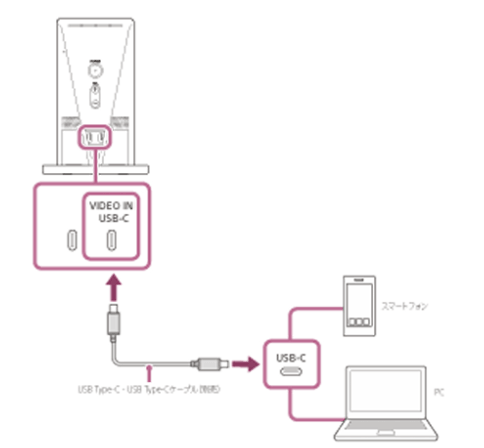
- Plug the ELF-MN1 into a power outlet.
Use the separately sold USB Type-C to USB Type-C cable and AC adapter to connect it to a power outlet.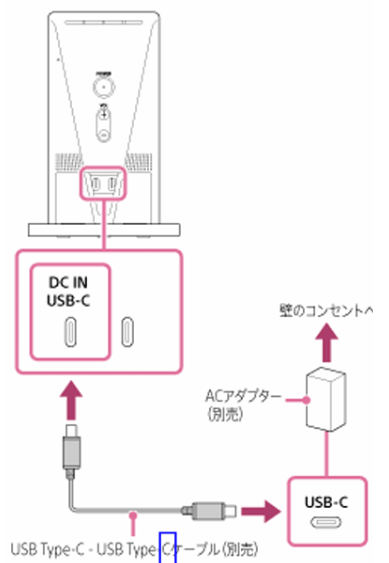
*Compatible AC Adapters (Please use an AC adapter rated at 20W or higher with the following profiles)
・Supports smartphone charging: PD 3.0 15V/3A (45W), 20V/2.25A (45W)
・Not compatible with smartphone charging: PD 3.0: 9V/3A(27W), 12V/2A(24W), 12V/3A(36W), 15V/2A(30W), 20V/1A(20W), 20V/2A(40W), 9V/2.22A(20W)
Configuring Your PC Environment
- Click “Settings” in the Start menu.
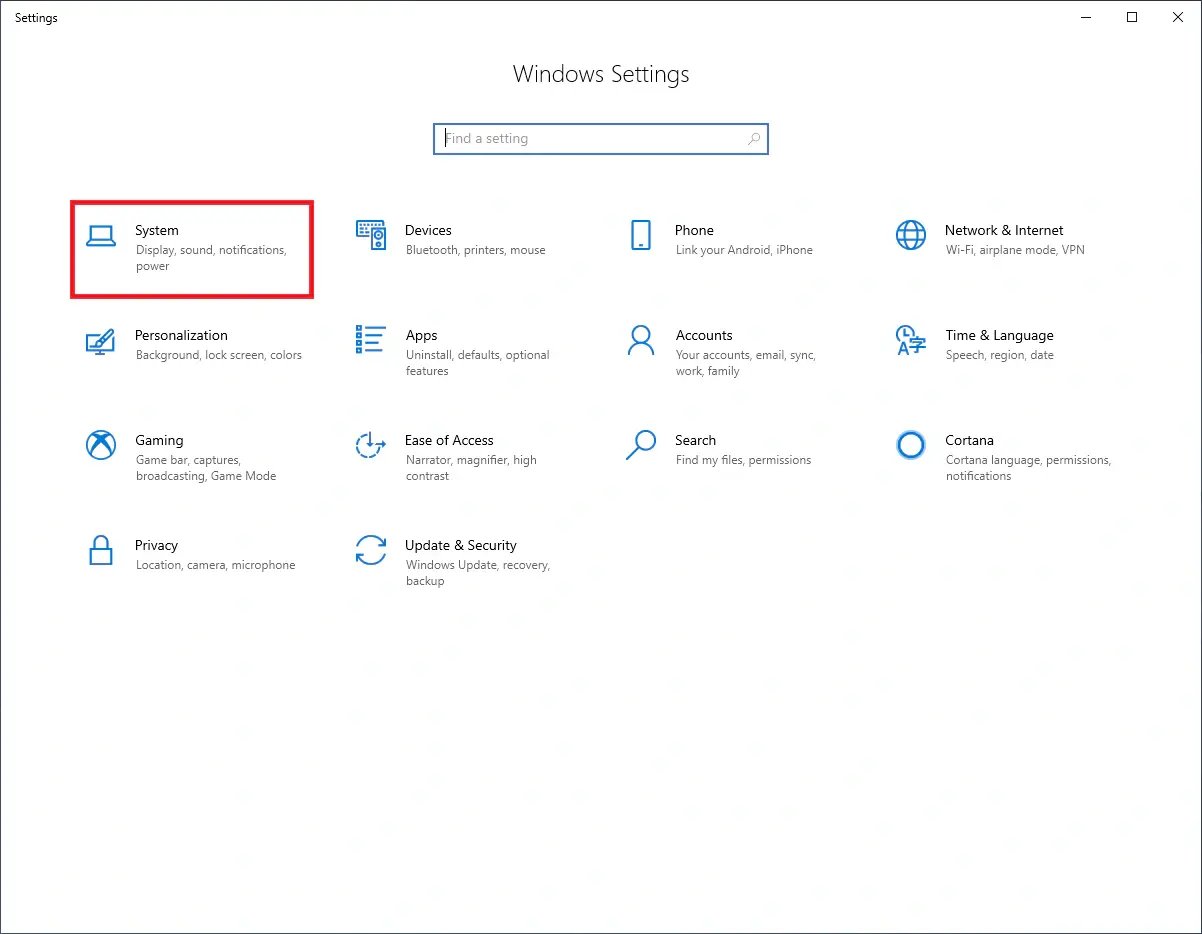
- Click “System” in the Settings window.
- Click “Display” in the left pane.
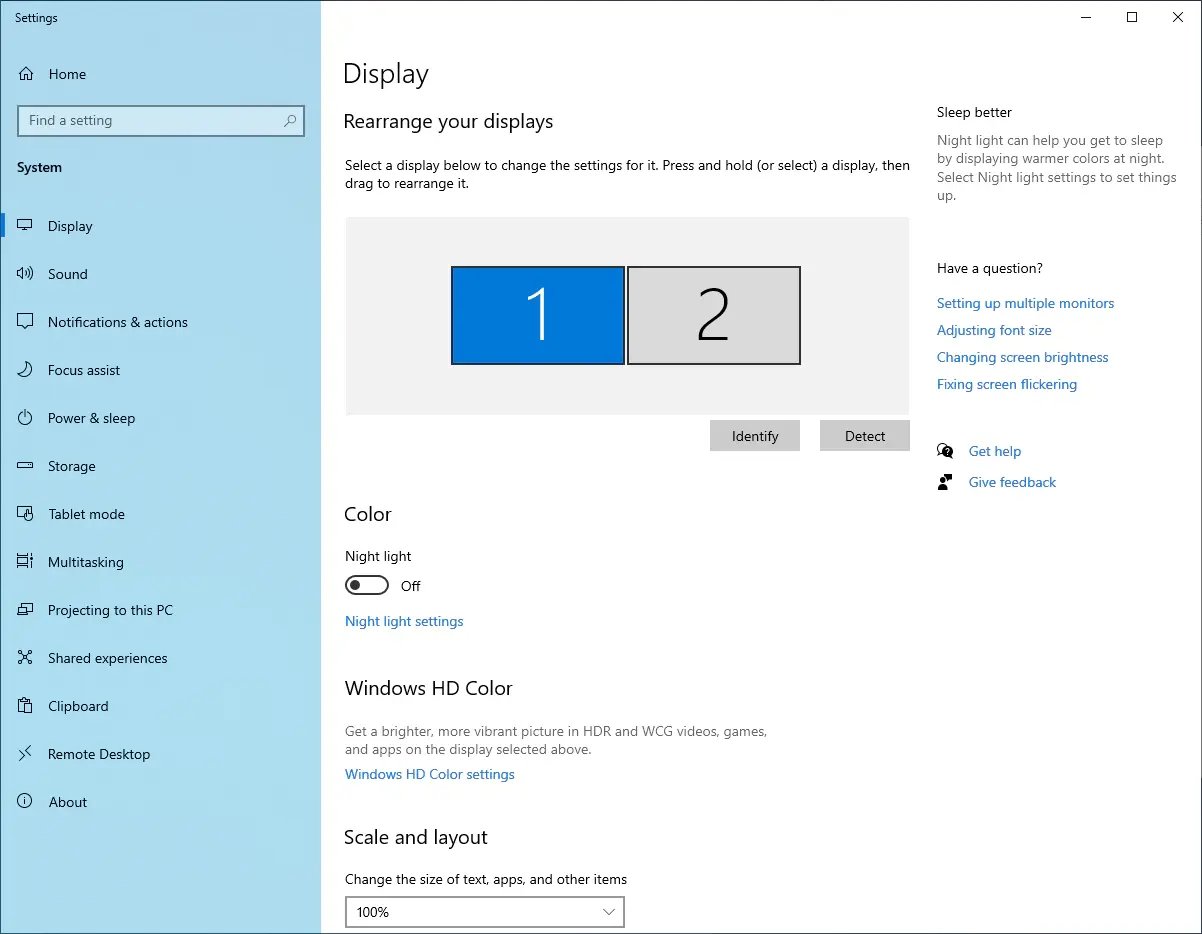
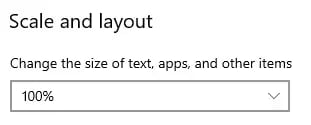
- Under “Change display settings,” select SR Display MN, and under “Change the size of text, apps, and other items,” select “100%.”
- Close the display window
Smartphone Settings
No special settings are required for smartphones.


