

When building the Spatial Reality Display Plugin for Android, you must resolve the Android dependencies.
For this plugin, we recommend using the External Dependency Manager for Unity (EDM4U) for dependency management.
While it is possible to build the plugin without using EDM4U, you will need to manually configure the Gradle template.
Using EDM4U (Recommended)
External Dependency Manager for Unity (EDM4U) is a tool provided by Google that helps resolve Android dependencies in Unity projects.
We recommend using EDM4U for Android builds of the Spatial Reality Display Plugin.
For more information, please refer to the official EDM4U GitHub page:
https://github.com/googlesamples/unity-jar-resolver
Automatically Install EDM4U
If EDM4U is not installed when building for Android, a confirmation dialog will appear in the Unity Editor.
- Yes: Automatically install EDM4U
- No: Do not install (manual configuration required)
- No - Do not ask again for this session: Do not install, and do not display this prompt again during the current Unity session (until the Editor is closed)
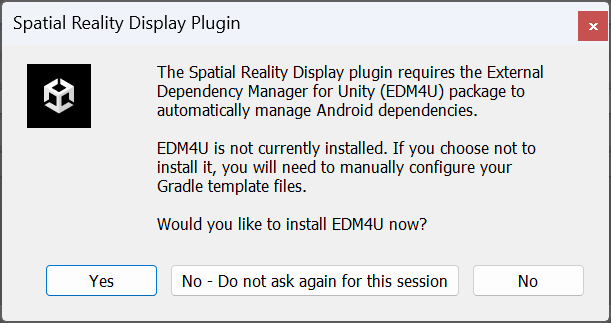
For automatic installation, the following UPM URL is used:
https://github.com/googlesamples/unity-jar-resolver.git?path=upm
Manually Installing EDM4U
If you do not use the automatic installation, please refer to the official repository below to install it manually:
https://github.com/googlesamples/unity-jar-resolver
After manually installing EDM4U, verify that `External Dependency Manager` appears in the Unity menu, and then run an Android build.
Caution
After installing EDM4U, the dependency resolution process runs automatically. However, in some cases, dependencies may not be resolved correctly, causing the build to fail.
In that case, you’ll need to manually force the dependency resolution process to run.
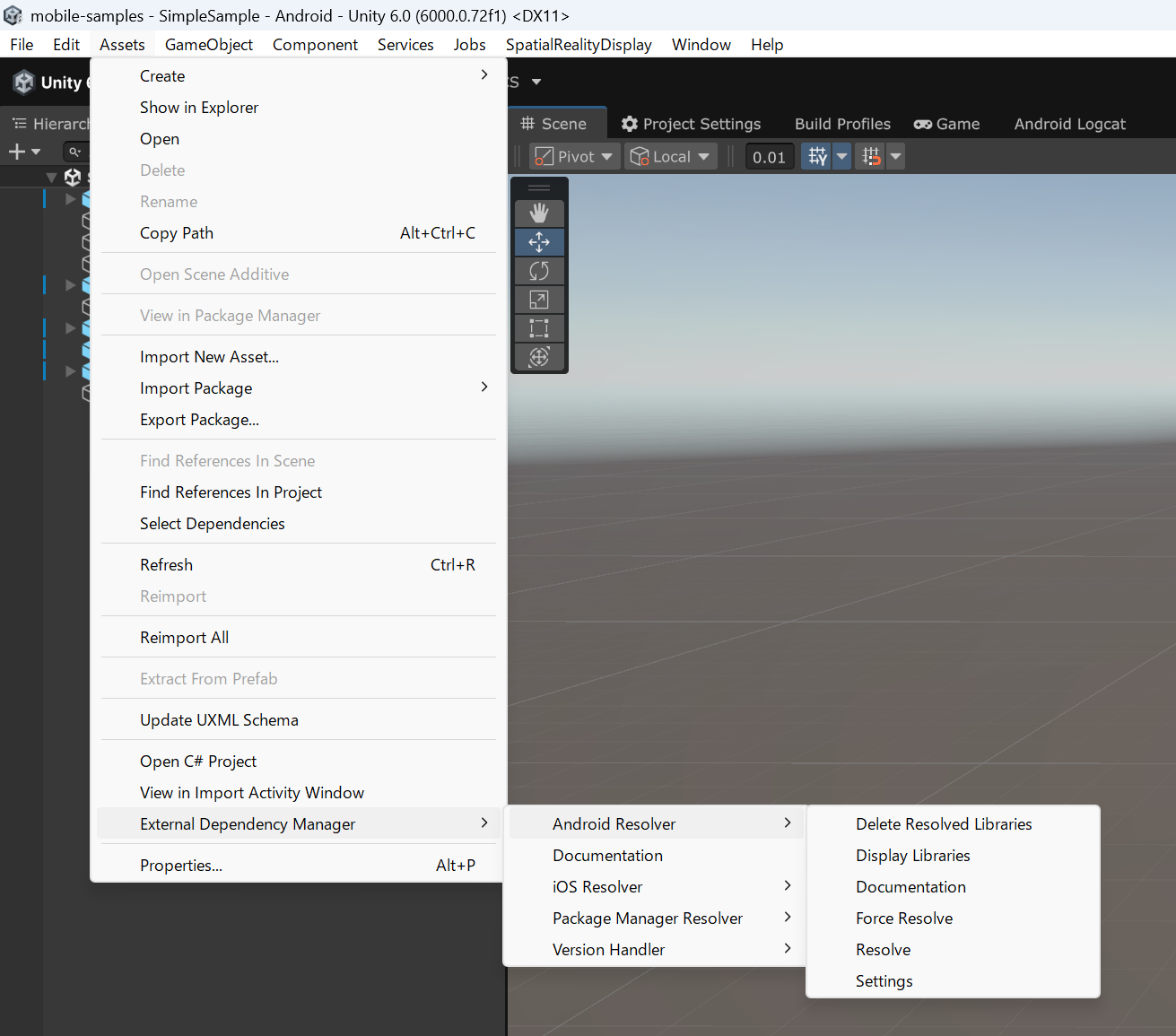
Select External Dependency Manager > Android Resolver > Force Resolve from the Assets menu, and then try the Android build again.
Configuration When Not Using EDM4U
If you are not using EDM4U,
please manually configure the Gradle template by following the instructions in
Assets/SRDisplayUnityPlugin/Plugins/Android/ANDROID_SETUP.md.
If the template is unedited, copy the following files
from Assets/SRDisplayUnityPlugin/Plugins/Android/ to Assets/Plugins/Android/.
- mainTemplate.gradle
- gradleTemplate.properties
- settingsTemplate.gradle
If you have already edited the template, please apply the following settings.


