Prerequisites
Before proceeding with the steps on this page, complete the steps on the following pages.
ELF-SR1/ELF-SR2:Setting Up Spatial Reality Display
ELF-MN1:Setting Up Spatial Reality Display ELF-MN1
Required specifications of development PC
Prepare a Windows PC that meets the specifications of operation environment check for Spatial Reality Display apps development.
Software list
The following is a list of files required for setting up the development environment. Download the following installer to your development PC.
Steps for setting up development environment
Close UE/Unity applications
Close Unreal Editor and Unity Editor before running the installer. Also, you MUST close EpicGamesLauncher and UnityHub from Windows system tray.
Install Spatial Reality Display Settings
In order to run Spatial Reality Display applications on a Windows PC and display 3D content on the display, it is necessary to install Spatial Reality Display Settings in the PC.
The following software is installed by the installer.
- Spatial Reality Display libraries
- Spatial Reality Display device drivers
- Spatial Reality Display Settings app
To install:
-
Execute Spatial Reality Display Settings Installer file and launch the installer.
- The following window is showed. Click "Next".
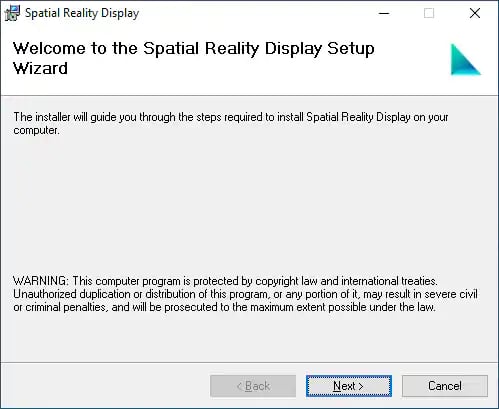
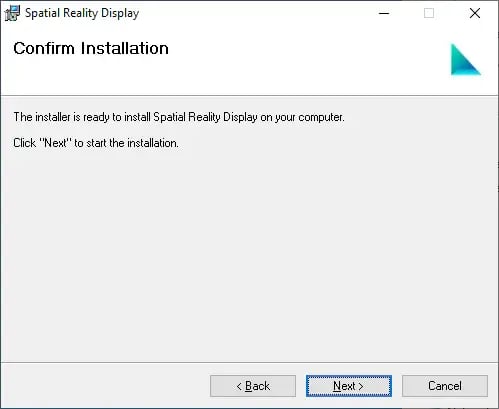
3. The following window is showed. Click "Next".
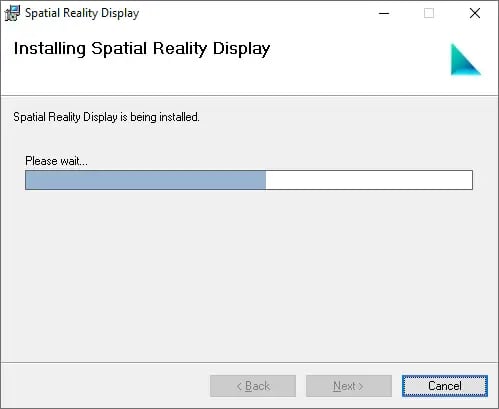
4. It takes a few dozens of seconds to complete the installation.
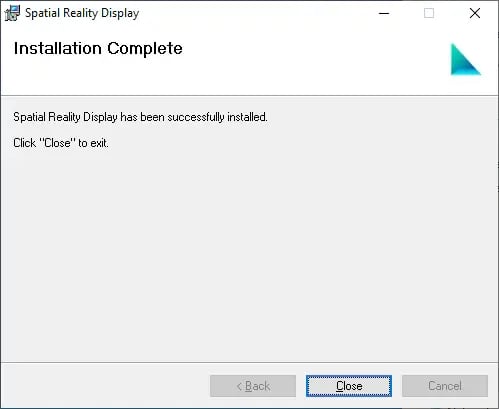
5. If the following window is showed, the installation was successful. Click "Close" to complete.