

The PortraitSRDisplayManager Prefab is the core prefab of the Spatial Reality Display Plugin for Unity. Unity apps for the ELF-MN1 generally use this prefab.
Prerequisites
- Ensure that the Spatial Reality Display setup is complete. If it is not, refer to the Spatial Reality Display Settings setup guide.
- Ensure you have a Unity project with the Spatial Reality Display Plugin for Unity imported. If you haven't prepared one yet, refer to the Unity setup guide.
Hierarchy
Anchors
There are three types of anchors: WatcherAnchor, LeftEyeAnchor, and RightEyeAnchor. They indicate the positions of the user's head, left eye, and right eye, respectively.
You can use these anchors to interact with the user.
In the LookAt sample, WatcherAnchor is used as the target to look at.
Cameras
There are three types of cameras: WatcherCamera, LeftEyeCamera, and RightEyeCamera.
Since the WatcherCamera is intended for use with raycasting from the user (such as UI cameras), its camera component is disabled at runtime.
If you want to change camera settings (such as Clear Flags or Background), you must ensure that the settings for the left and right cameras are identical to provide a comfortable user experience.
If you want to add a script to the camera component, add it to both LeftEyeCamera and RightEyeCamera.
PortraitSRDManager component
PortraitSRDManager is the core component that handles the Spatial Reality Display runtime. It also contains the basic Spatial Reality Display parameters that application developers must configure.
Place only one PortraitSRDManager in a scene.
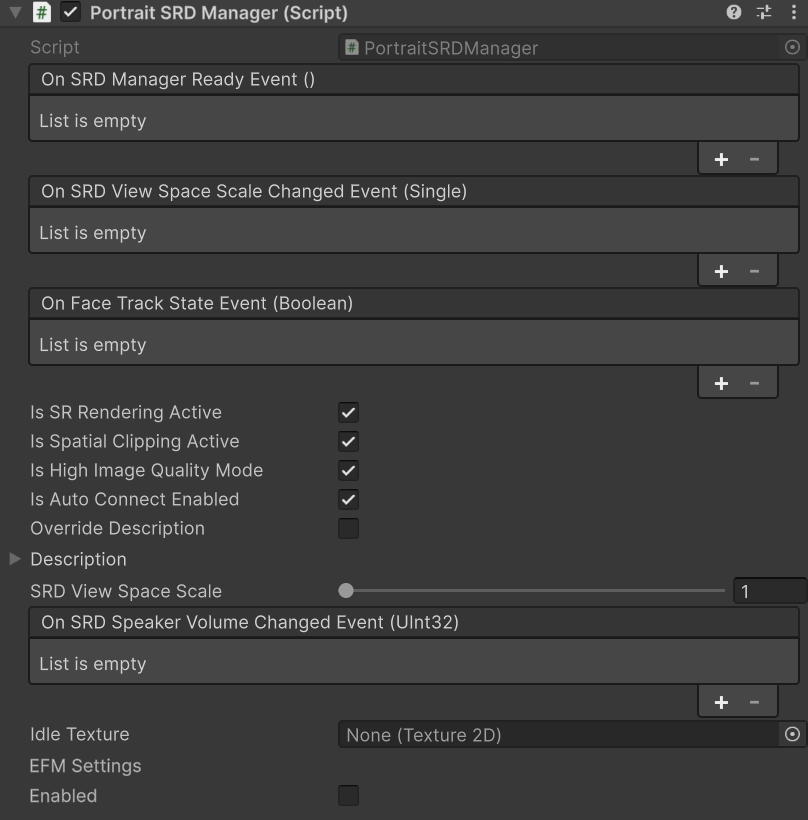
Properties
Is SR Rendering Active
You can toggle SR rendering on or off. If set to false, only the image rendered by the LeftEyeCamera will be displayed.
Is Spatial Clipping Active
You can enable or disable spatial clipping. For details, see Spatial Clipping.
Is High Image Quality Mode
You can turn the image enhancement feature on or off.
If the image enhancement feature is turned on, the application display may appear distorted.
Is Auto Connect Enabled
You can configure whether the object automatically establishes a connection with the Spatial Reality Display when it becomes active (OnAwake). If set to `false`, you can establish a connection by calling the ConnectAsync function from the application.
SRD View Space Scale
You can change the SRD View Space Scale using the settings. For details, see “View Space Scaling.”
Idle Texture
(Android/iOS only) You can set the texture that appears on the Spatial Reality Display when content is not being rendered. If no texture is set, a black screen will be displayed.
EFM Settings
You can enable Easy Fusion Mask and configure various parameters. For details, see [About EFM](new page).
UnityEvents
For general information on how to use UnityEvent, see Manual: UnityEvent.
On SRD Manager Ready Event
You can set up a callback that is invoked immediately before rendering begins, after a successful connection to the Spatial Reality Display.
On SRD View Space Scale Changed Event
You can set a callback that is invoked when the value of SRDisplay View Space Scale changes.
On Face Track State Event
You can set up a callback to retrieve a flag indicating whether face recognition was successful in this frame.
On SRD Speaker Volume Changed Event
You can set up a callback to retrieve the new volume value when the volume button on the Spatial Reality Display is pressed.


