

Spatial Reality Display does not recommend placing objects that extend beyond the edges of the screen. To help reduce screen clipping at the edges caused by objects that temporarily extend beyond the screen, we have implemented EFM (Easy Fusion Mask).

EFM OFF

EFM ON
Prerequisites
- Make sure you have completed the Spatial Reality Display setup. If you haven't, see “Spatial Reality Display Settings Setup.”
- Make sure you have a Unity project with the SRDisplay Unity Plugin installed. If you haven't prepared one, see “Unity Setup.”
Instructions for Use
- Check the “Enabled” checkbox under EFM Settings for the Spatial Reality Display Manager component.
- First, we'll explain an example using a solid-color frame.
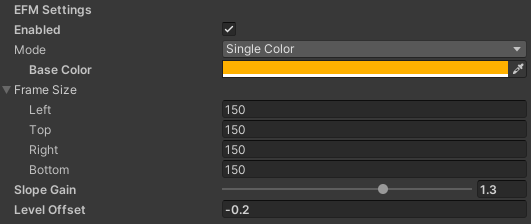
Set the Mode to Single Color. Next, set the color to be used as the background color. In Frame Size, specify the area where EFM control is enabled by setting the number of pixels from the top, bottom, left, and right edges of the screen.
In Slope Gain, set the slope of the transition from the edge of the screen toward the center, and in Level Offset, apply an offset to that gain. The gain is clipped to a range of 0 to 1. - Place the object you want to display as a picture frame within the screen. We recommend matching the frame's color and width to the settings specified in Step 2.
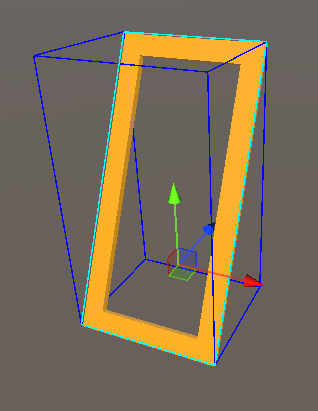
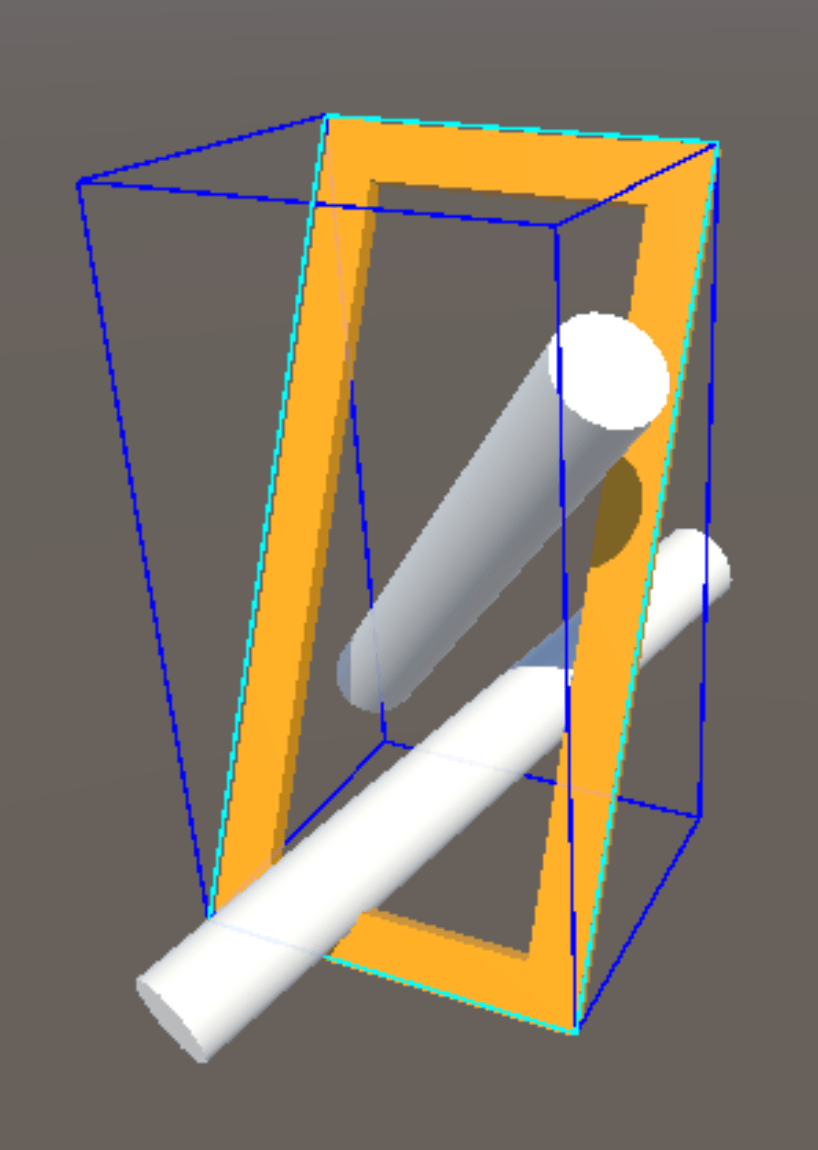
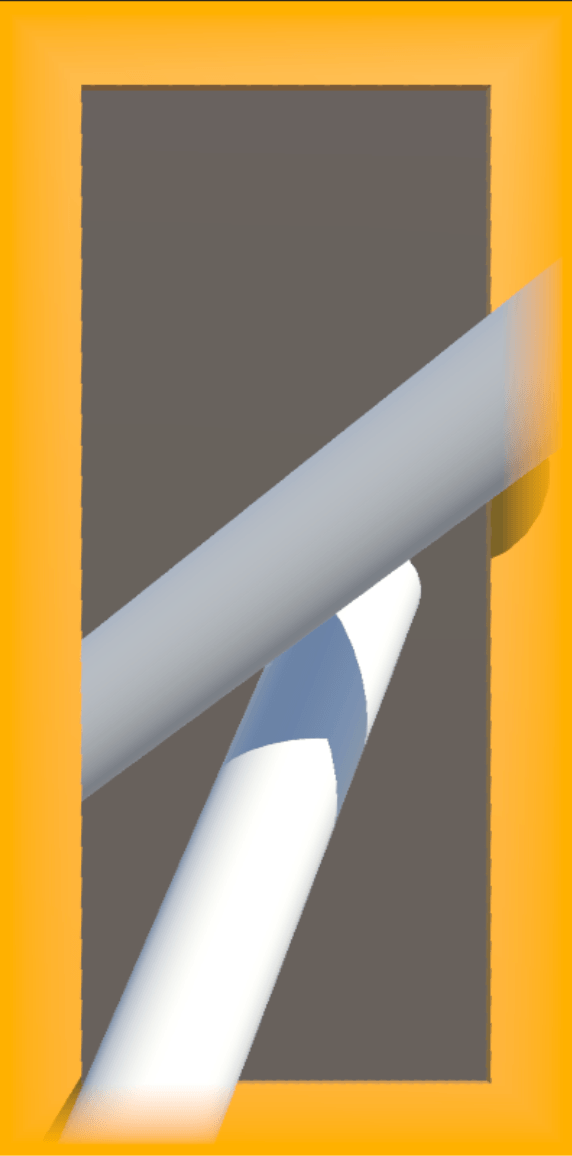
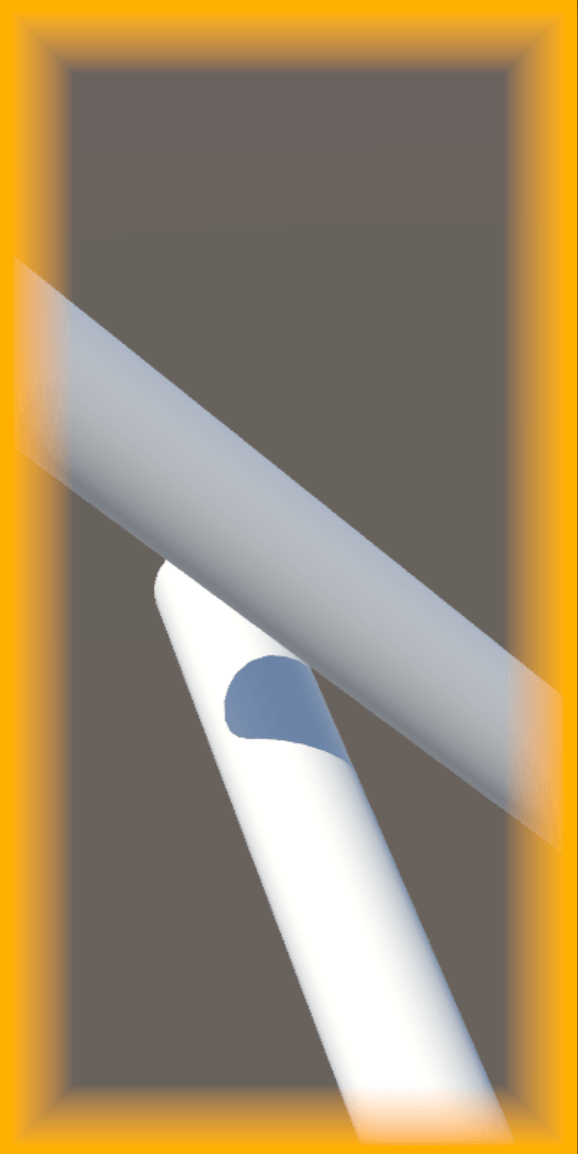
- When you run the program, you can see that the object extending beyond the edge of the screen, as shown in the figure, becomes more transparent as it approaches the edge, blending into the frame.
(If you do not place an object within the frame, the transparency effect will use the color set in “Base Color” as the background color, as shown in the figure on the right.)
5. You can also use a texture as a frame. An example of the settings is shown below.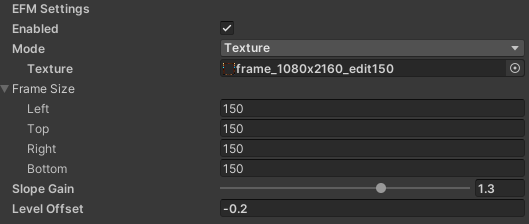
Set the “Mode” to “Texture” and specify the texture you want to use.
At the same time, place a Plane that uses the same texture as the “Object.”
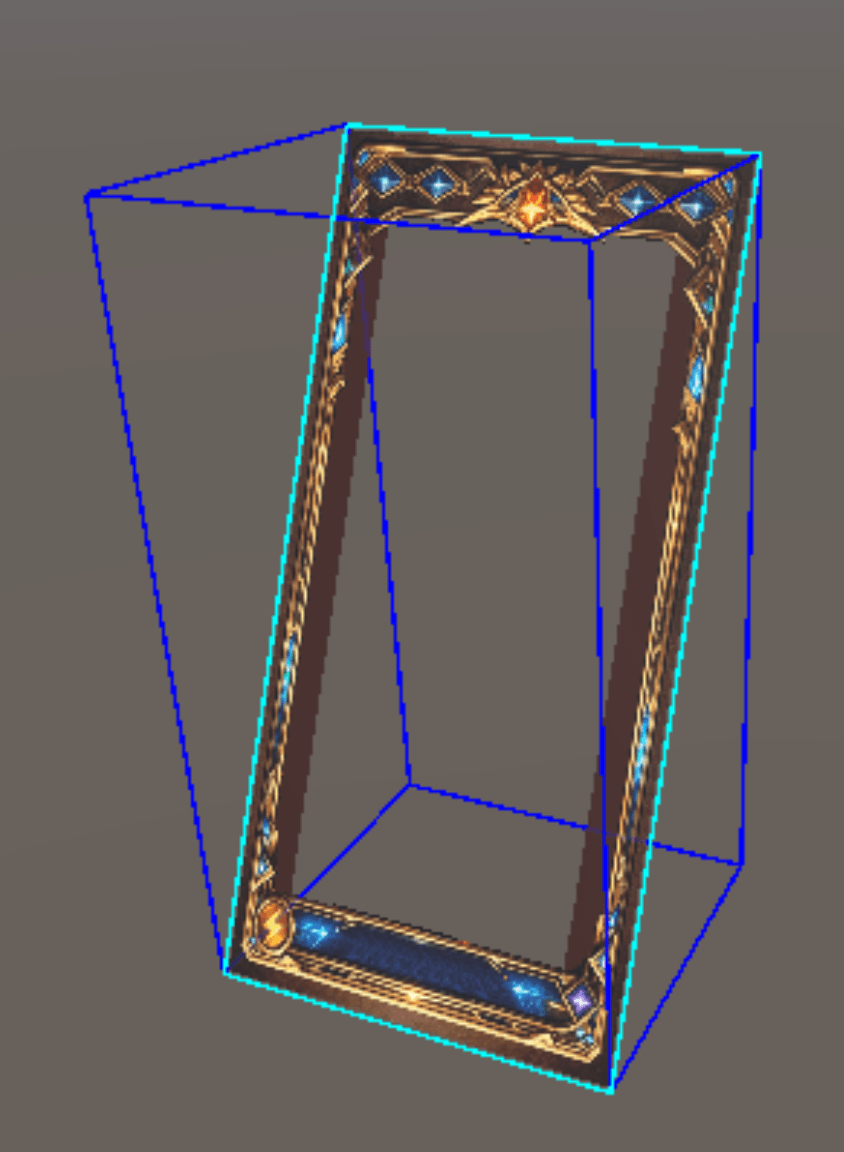
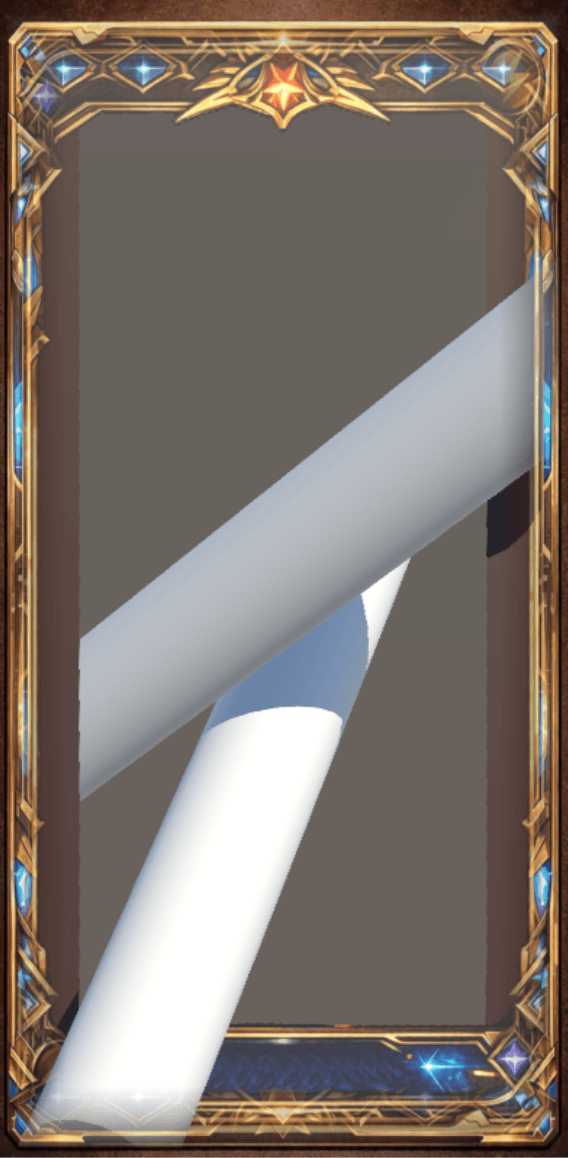
When executed, just as with a solid-color frame, objects that protrude become more transparent as they approach the edge of the screen, which helps minimize the loss of visibility.


