

The Spatial Reality Display Settings app allows you to adjust the Spatial Reality Display settings and verify whether the high-speed vision sensor is recognizing the viewer's face.
Launching Spatial Reality Display Settings
- Click the Windows Start button.
- Select Spatial Reality Display > Spatial Reality Display Settings and run the app.
General Settings
Information regarding the settings for the Spatial Reality Display selected in the upper-right corner is displayed in the Device Settings, Image Quality Settings, Log Settings, and Other tabs.
Display Settings
Single Display
When configuring the ELF-MN1, select “Single Display,” then use the button in the upper-right corner to switch modes.
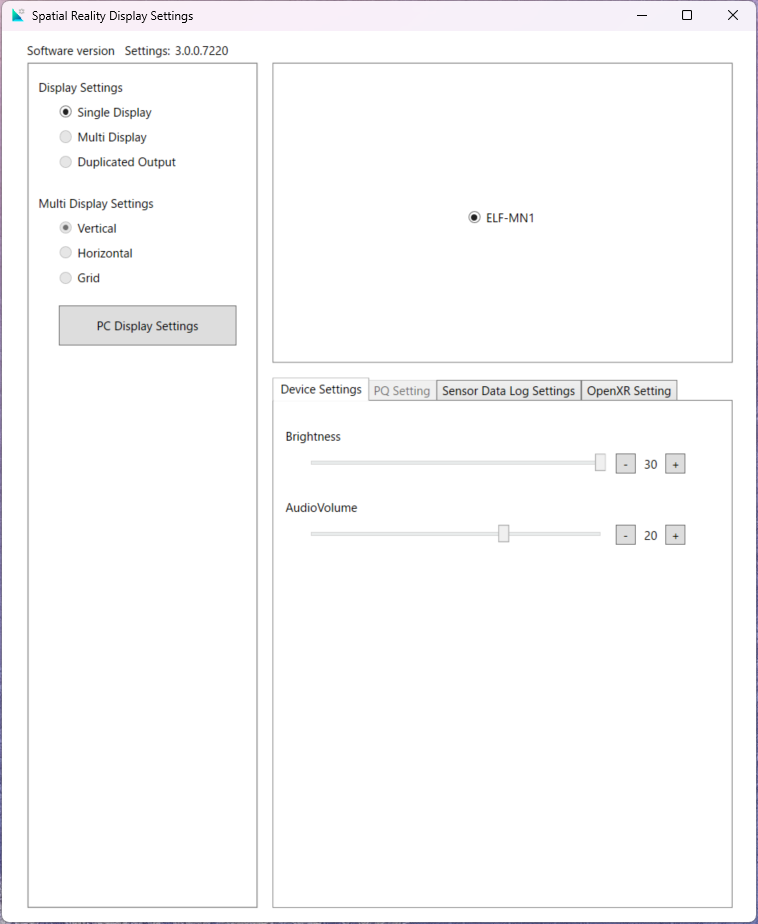
Multi-Display
This option is not available on the ELF-MN1.
Duplicate Output
This option is not available on the ELF-MN1.
Multi-Display Settings
This option is not available on the ELF-MN1.
PC Display Settings
The display settings for your PC will open.
Device Settings (ELF-MN1)
Device Settings tab
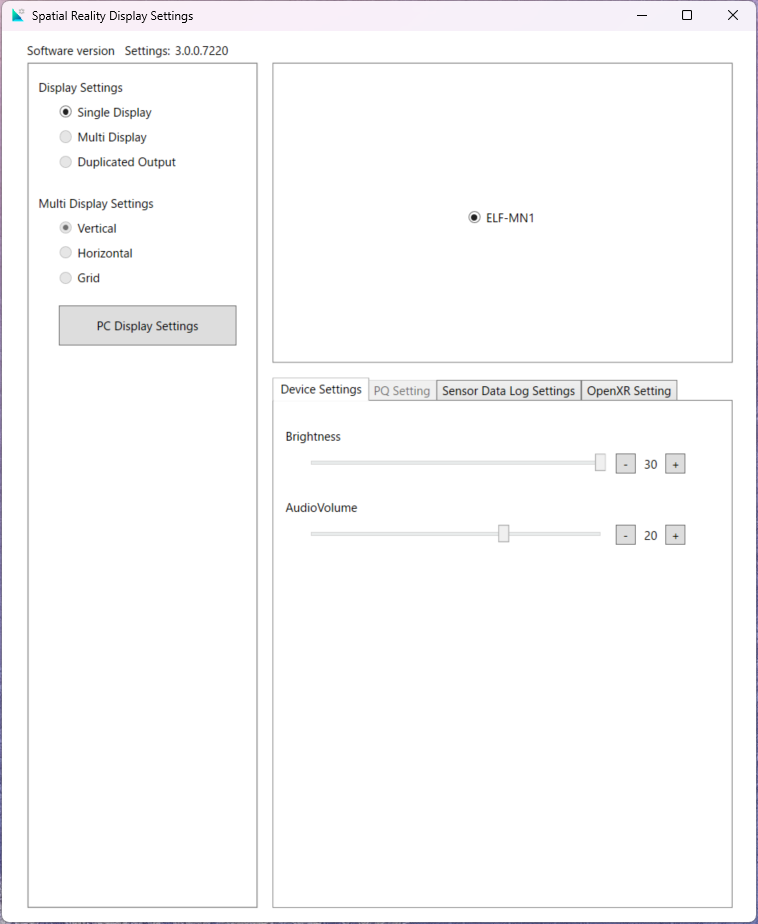
You can adjust the settings for the following devices using the Settings app.
-
Brightness
- Volume
OpenXR Settings
OpenXR Tab
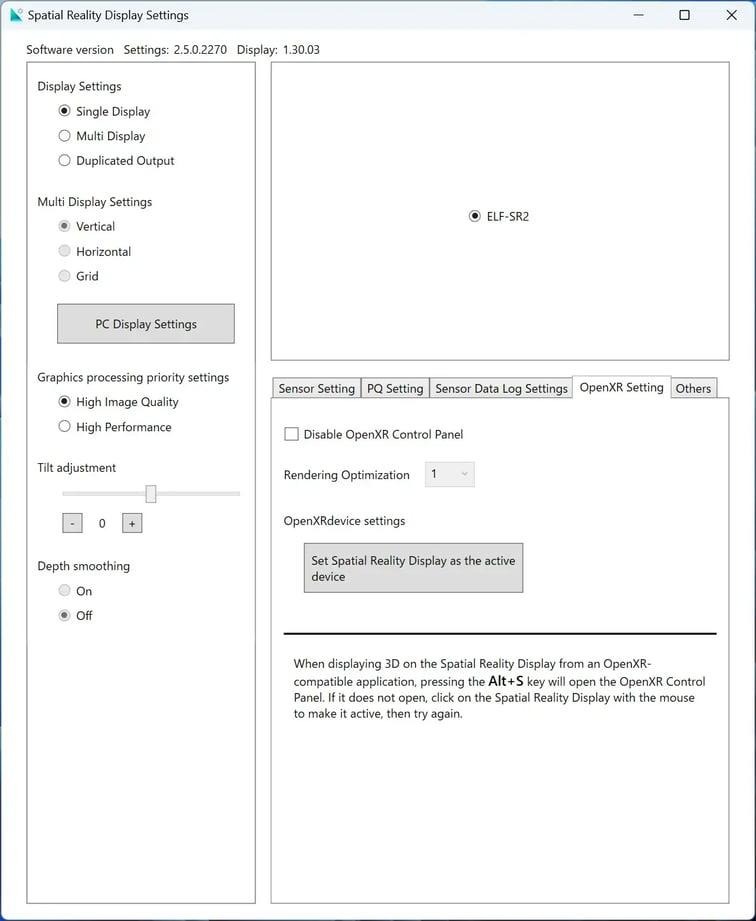
Disable the OpenXR Control Panel
-
This disables the settings configured in the OpenXR Control Panel, which is accessible from OpenXR-compatible applications.
- Use this option if an OpenXR-compatible application fails to launch after you change the settings.
Rendering Optimization
-
You can only change this setting if the OpenXR Control Panel is disabled. This setting adjusts the parameters used for rendering.
- If OpenXR-compatible applications do not launch even after disabling the OpenXR Control Panel, changing this value may allow them to launch.
OpenXR Device Settings
-
Set the Active Runtime—which you configured to use other OpenXR-compatible VR devices—to the Spatial Reality Display so that you can run OpenXR-compatible applications on the Spatial Reality Display.


