









In this article
Here is how to manually adjust camera parameters when using XYN Spatial Scan Navi.
*As of April 2026, this service is available for corporate customers with accounts. Contact us
*The screen images shown here are for illustrative purposes only and are subject to change.
Parameter Override
You can configure parameter overrides by selecting [Camera] from [Settings] and then choosing [Camera Exposure/White Balance Override].
When this setting is enabled, the aperture (F-number), shutter speed (SS), ISO, and white balance (WB) are automatically set when capturing reference images. If you prefer to always use manual settings for capture, you can disable automatic adjustment by turning this setting off.
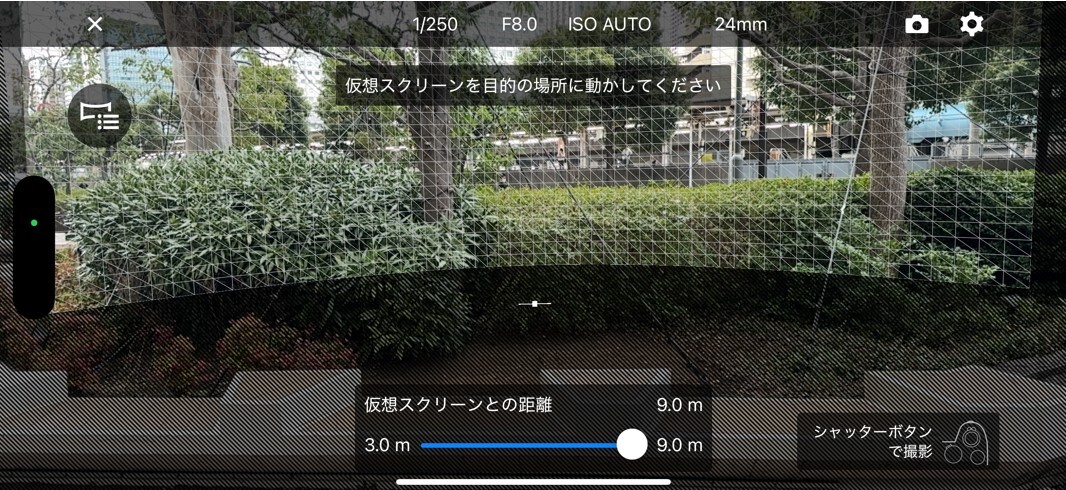
Reference image capture screen. Parameters such as F-number, shutter speed (SS), and ISO are displayed at the top; enabling the override setting causes these values to be set automatically.
For manual settings
Parameters are automatically set immediately after the reference image is captured. To use manual settings, configure the parameters on the screen that appears after the reference capture, then press the [Start Capture] button to begin shooting.
Photos taken while adjusting parameters on this screen are tagged with a "reference flag." If uploaded via XYN Spatial Scan Navi, these photos are automatically excluded. However, please note that if photos are imported directly from the camera, they are not excluded and will be used for generation.
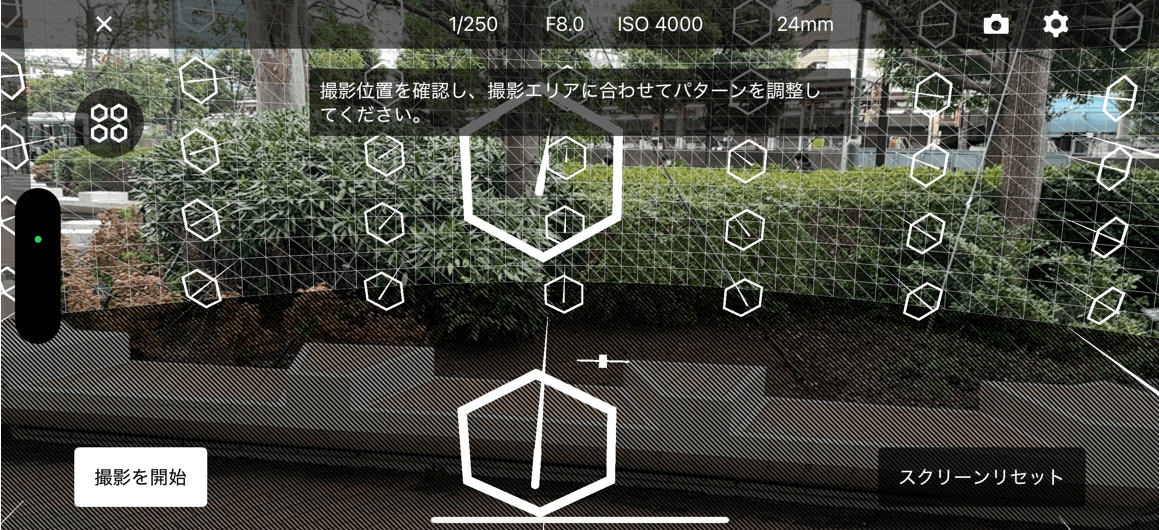
The parameter adjustment screen displayed after reference image capture. Manually adjust the values at the top, then press [Start Capture] to begin shooting.


