









In this article
This article explains how to automatically upload captured data in XYN Spatial Scan Navi.
*As of April 2026, this service is available for corporate customers with accounts. Contact us
*The screen images shown here are for illustrative purposes only and are subject to change.
Automatic Upload *Beta Feature as of April 2026
To configure Automatic Upload, select [Cloud] from [Settings], then turn on [Enable Upload to XYN Spatial Scan].
When this setting is enabled, a project is automatically created in XYN Spatial Scan, and the captured images and metadata are automatically uploaded.
Automatic Upload allows you to start generation in XYN Spatial Scan immediately after capture without transferring photos to a PC. By utilizing capture metadata, a more efficient generation workflow can be achieved.
If you do not want to upload data while using a mobile data connection, turn off [Upload/Download over Mobile Data] under [Network Options].
By default, [Save Original Images in the App] is turned off. When enabled, captured photos are saved on the iPhone.
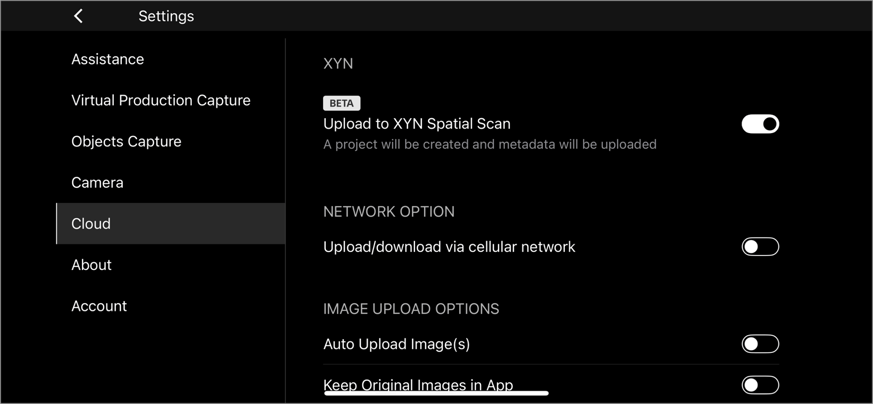
Automatic Upload settings screen.


