









In this article
This article explains how to adjust the placement of the guide pattern in XYN Spatial Scan Navi.
*As of April 2026, this service is available for corporate customers with accounts. Contact us
*The screen images shown here are for illustrative purposes only and are subject to change.
Changing the Guide Pattern
As of June 2026, guide patterns can be changed by selecting from preset options. This section explains how to change the guide pattern and describes the available options.
Guide Patterns
The shooting guide displayed after reference capture is configured by default for landscape-oriented screens. You can change the guide layout using the button in the upper-left corner of the screen, depending on the screen shape and the available shooting area.
The following guide patterns are available.
- Standard:
- 5 × 11 points
- 2 layers (front and back)
- Total: 110 capture points - Portrait (Narrow):
- 5 × 5 points
- 4 layers (front to back)
- Total: 100 capture points
Suitable for narrow locations, screens with limited width, or environments where there is sufficient space to move forward and backward. - Landscape (Narrow):
- 5 × 11 points
- 2 layers (front and back)
- Total: 110 capture points
The number of capture points is the same as the Standard pattern. However, the guide area is approximately half the size of the Standard pattern in both the horizontal and front-to-back directions. Landscape (Narrow) is suitable for narrow screens or environments with limited shooting space.
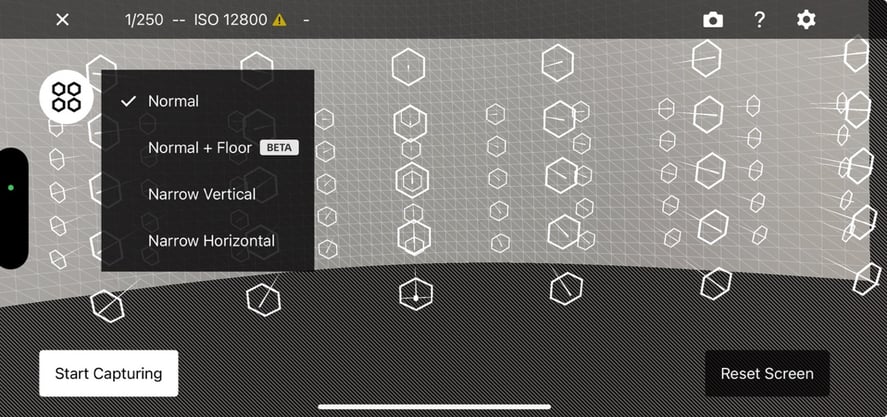
Screen size selection menu for the shooting guide. Select a screen size using the button in the upper-left corner of the screen.
Hold & Shoot
To configure Hold & Shoot, select [Shooting Assist] from [Settings], then select [Hold & Shoot]. This setting is enabled by default.
When enabled, the shutter is released only after the camera detects that the device is stationary in Auto Shutter mode. This helps reduce camera shake.
Keeping this setting enabled is recommended. If shooting time is limited and you need to capture images quickly without stationary detection, set this option to Off.
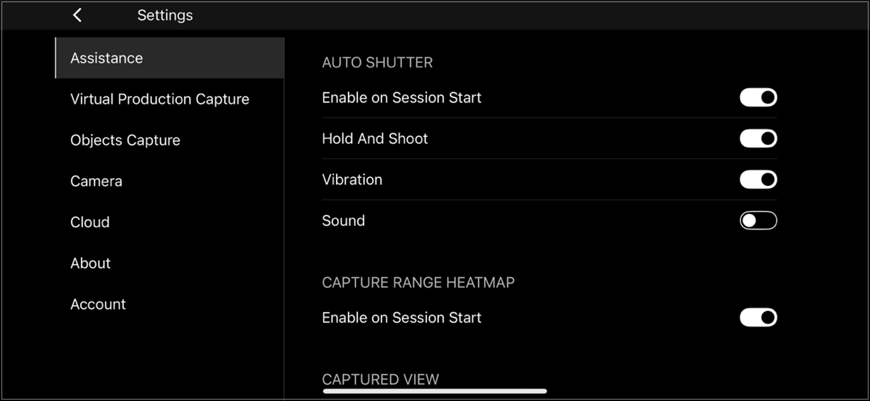
Settings screen for [Settings] > [Shooting Assist]. [Hold & Shoot] is enabled by default.


