What you will learn in this article
This explains how to capture background assets for virtual production using XYN Spatial Scan Navi.
*As of April 2026, this service is available to corporate account holders. Please contact us here.
The screen images shown on this page are from a version currently under development. The actual display may differ.
Quick Start Guide
Please refer here for the XYN Spatial Scan Navi setup procedure, and here for basic operations.
Basic Operations and Screen Overview for Object Mode
Please refer here for basic operations and an explanation of the screen in Object Mode.
Object mode shooting
Create Project
- Select a mode.
Select the "Assist" object.
・Virtual Production: This is the navigation mode for Virtual Production (VP) shooting.
・Object Assist *Beta feature: A navigation mode that uses a distance indicator for object photography.
・Object: Full Guide *Beta feature: A navigation mode that uses guide patterns for photographing objects.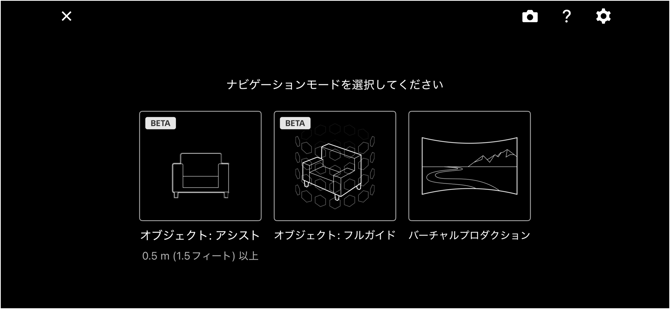
Thumbnail image shooting
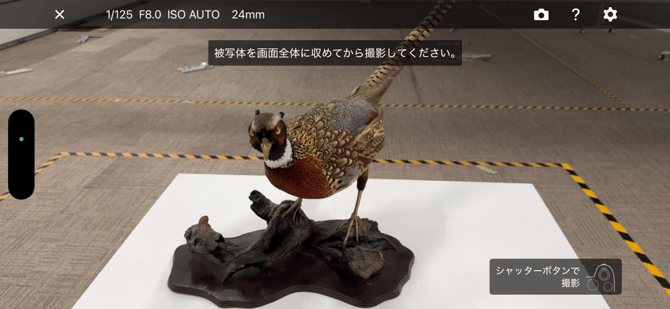
You will take a shot for the thumbnail. Images captured during this step are marked as references and are not used for processing. You can adjust the exposure by actually taking a picture. Adjust the camera exposure settings and frame the subject so that it fits within the entire screen.
By tapping the camera settings area, you can save up to 10 presets for your settings. You can also save the "Hold & Shoot" configuration along with them.
Offset correction
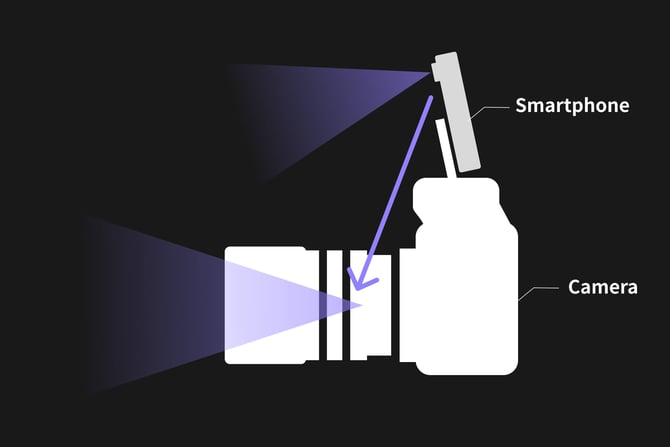
When capturing thumbnail images, the system performs processing to correct the parallax offset between the smartphone and the camera. The images captured during this step are also saved as reference images. Re-calibration can also be performed during the capture process.
*Note: Offset calibration may fail depending on the subject or environment. If it fails, please remain still and capture an image of a surface with rich texture, such as a floor.
An alert may appear depending on the ISO value automatically set based on lighting conditions; please adjust the shutter speed and aperture (F-number) appropriately.
Object scanning
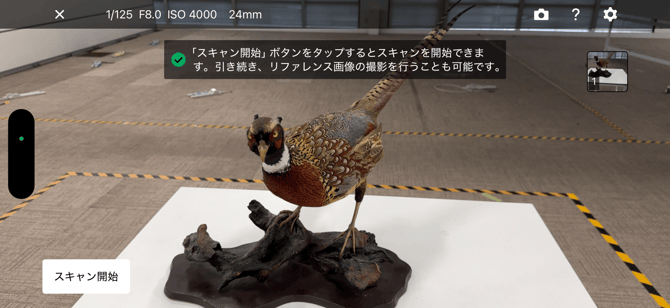
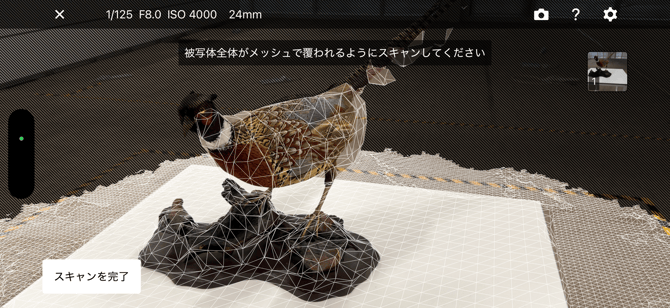
Enter scan mode to begin automatically generating the mesh. Move within two meters of the object and scan while circling it, ensuring there are no gaps in the mesh.
*Note: The mesh may not be applied accurately to small objects or intricate shapes; please complete the scan after confirming that the mesh has been applied to some extent.
Bounding Box Settings
Please set the bounding box to clip only the mesh of the object to be captured from the scanned area.
The area within the bounding box set here will be the target for capture navigation and generation.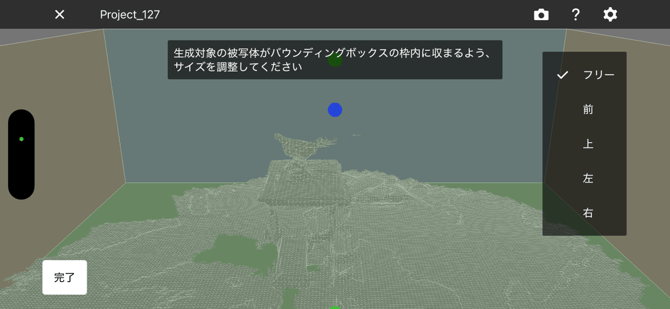
Target Distance Setting
The target distance—at which the entire subject fits within the camera's field of view—is automatically set based on the configured bounding box size and the lens focal length.
While shooting at the automatically set distance is recommended, you can also adjust it using the button at the bottom of the screen to suit your actual shooting environment. Press the camera's shutter button to confirm the setting.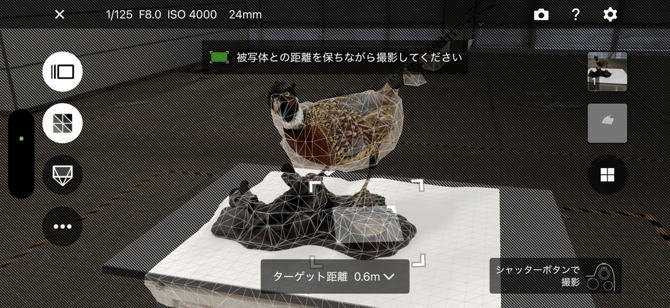
Shooting (Distance Indicator)
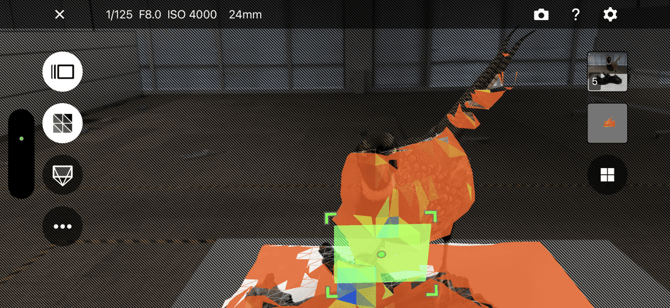
Adjust the distance to the subject so that the size of the rectangle displayed in the center of the screen matches the size of the focus frame; the indicator will then turn green. A green indicator signifies that the target distance set prior to shooting is being maintained. In this green state, the camera is focusing using AF-S.
*Note: The camera cannot focus on low-contrast subjects*; the focus frame turns purple, and the auto-shutter does not activate. Please try to focus on an area where the camera can lock focus.
Shooting (Focus Indicator)
When focusing using AF-S, areas within the focus range are indicated by brightness levels (darker areas indicate regions outside the focus range).
*Note: Lowering the f-number narrows the focus range. Shooting at f/8.0 or higher is generally recommended.
Shooting (Auto-shutter)
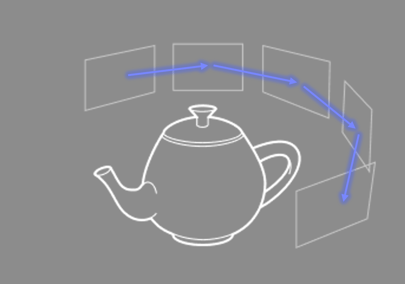
Enable Auto-Shutter mode to take photos manually. The shutter triggers automatically once you have moved a certain distance from the manual shooting position. Photos are taken based on the "image overlap" setting found under Settings > Auto-Shutter > Target Shooting Interval; a higher degree of overlap results in a shorter shooting interval.
*Note: If you turn off the auto shutter mode or open the settings screen and move away from the shooting screen, the auto shutter will start when you manually shoot again.
Shooting (Hold & Shoot)
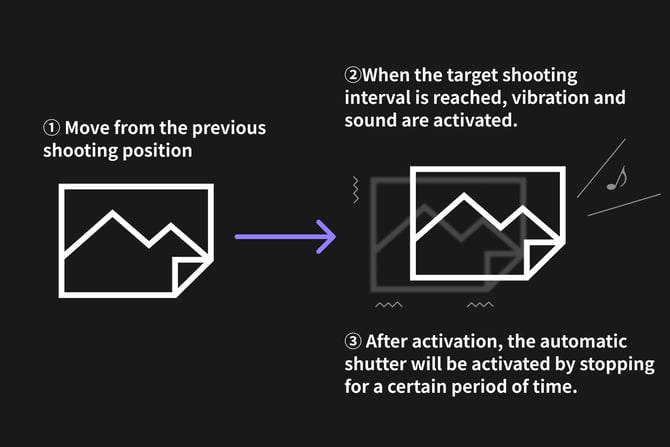
When "Hold & Shoot" is enabled, the camera provides vibration and sound feedback once it reaches a position suitable for the auto-shutter function. The auto-shutter triggers after the camera is held steady* for a specific duration following this signal. Using "Hold & Shoot" in auto-shutter mode allows you to capture images while preventing camera shake and ensuring sufficient image overlap.
A determination of whether the subject is stationary is automatically calculated based on factors such as the set shutter speed, focal length, and target distance.
Recording (Recording Area Heatmap)
The mesh on the object is color-coded as a heat map based on the capture coverage calculated from factors such as camera positions and the number of shots taken; this can also be viewed in the overhead view.
Areas displayed in red or yellow may indicate insufficient coverage; therefore, we recommend prioritizing additional captures in these areas until the entire model appears white.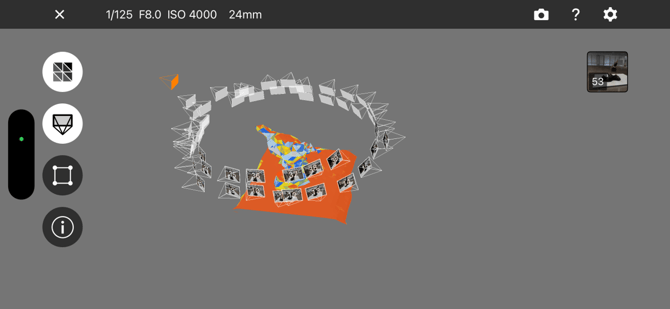
Shooting (Camera Viewpoint)
It displays the positions of cameras where footage has already been captured using AR. This feature is useful for verifying camera angles where coverage may be insufficient, and the display is also available in an overhead view.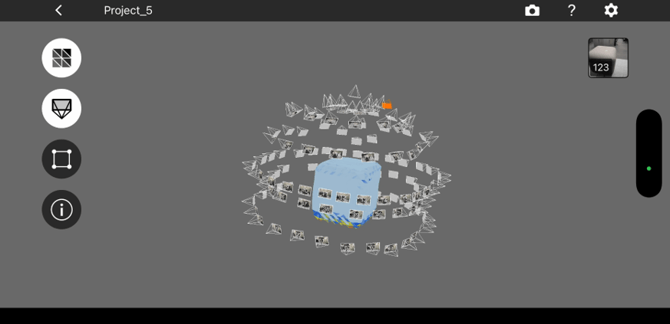
We recommend capturing images that fully encircle the object, aiming for 36 directions at 10° intervals across five different height levels.