




In this article
An overview of the basic operations and screen interface for XYN Spatial Scan Navi.
*As of April 2026, this service is available for corporate customers with accounts. Contact us
*The screen images shown here are for illustrative purposes only and are subject to change.
Basic Operations and Interface Description
Gallery Screen
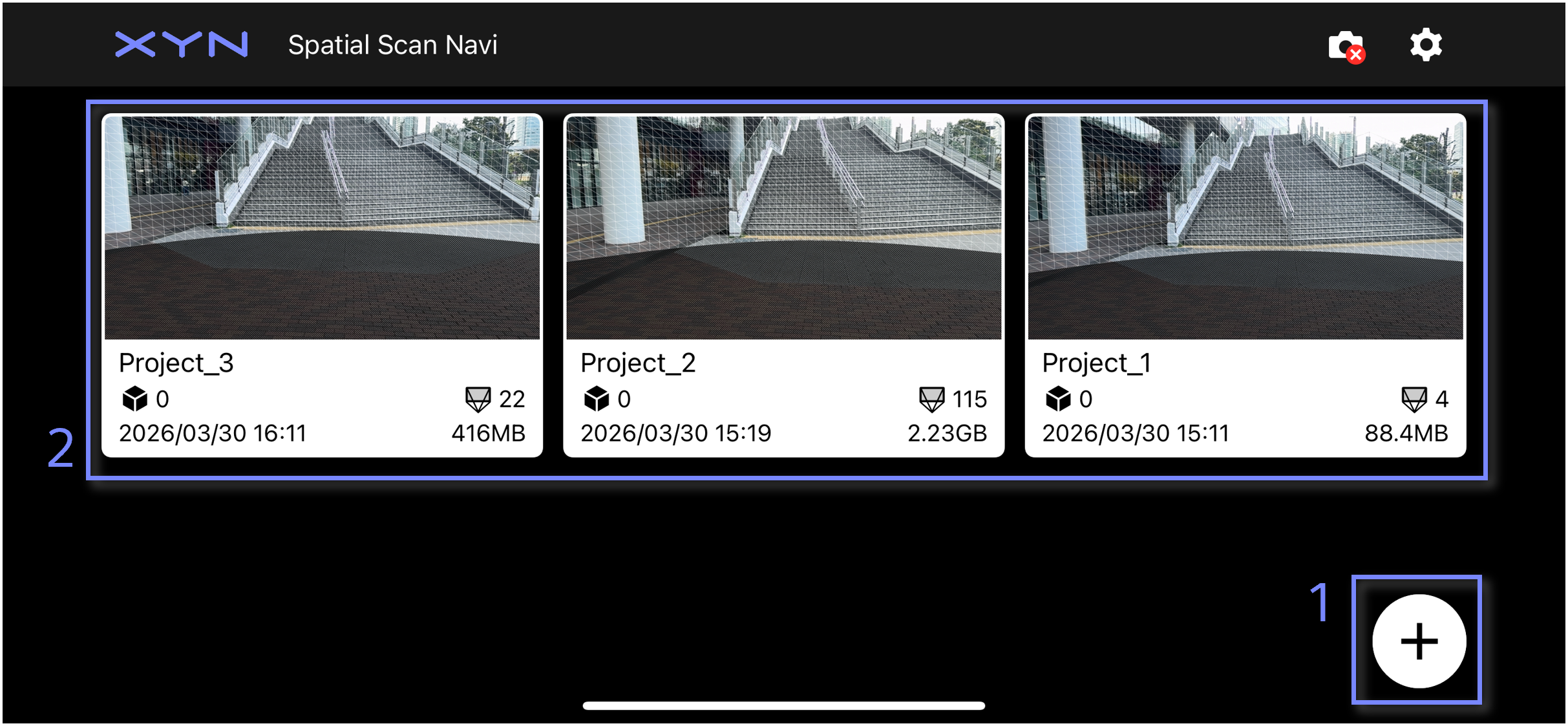
-
Create project:Creates a new project.
-
Existing project(s):Displays the project name, creation date, number of captures, project size, number of created models, and upload information.
Icons
-
Camera icon:Indicates the camera connection status.
-
Network icon:Indicates the network connection status. The icon is not displayed when connected to Wi-Fi.
-
Cloud icon:Indicates the connection status with XYN Spatial Scan.
-
Model icon:Indicates the upload, download, and reconstruction status.
-
Help icon:Opens the external help guide.
-
Setting:Opens the Setting.
Settings
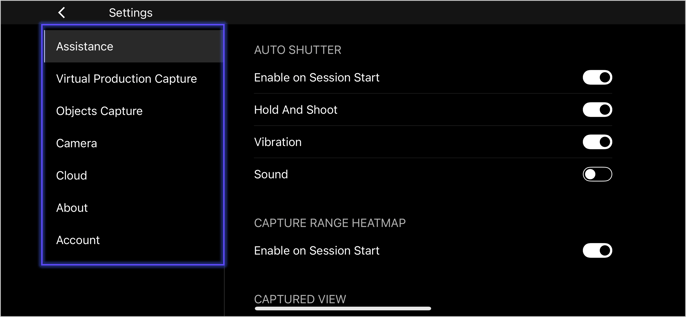
- Assistance:Configures settings for the capture assist features.
- Virtual Production Capture:Configure settings for Virtual Production mode.
- Objects Capture:Configure settings for Object Capture mode.
- Camera:Displays camera ( α ) information and configures parameter settings.
- Cloud *Beta:Configures settings for connection to XYN Spatial Scan and Auto Upload Image(s).
- About:Displays the Terms of Service, Version, and Privacy Policy.
- Account:Displays the signed-in account and allows you to sign out.
Settings: Capture Assist
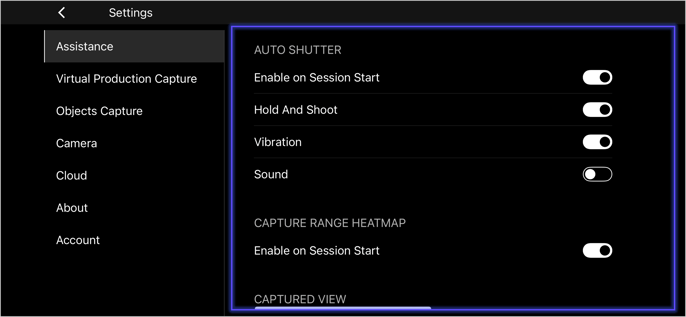
- Enable on Session Start:Enables each feature on session start.
- Hold and Shoot:Detects stillness and triggers the shutter to prevent camera shake in Auto Shutter mode.
- Capture Interval Target:(Object mode only) Sets the target image overlap ratio to a custom value. Higher values result in shorter intervals.
- Vibration:Vibrates when the Auto Shutter position is reached.
- Sound:Plays a sound when the Auto Shutter position is reached.
- Captured View Display Size:Changes the display size of Captured View.
- Camera-Phone Offset Compensation:When enabled, performs parallax offset compensation between the smartphone and camera during reference capture.
Settings: Virtual Production Capture
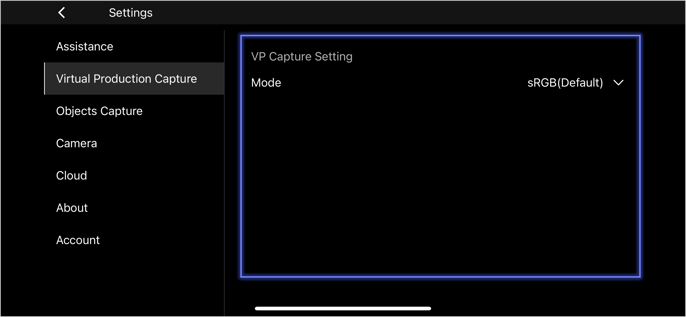
- Mode:You can choose between sRGB and S-Gamut3.Cine/S-Log3 for shooting.
Settings: Objects Capture
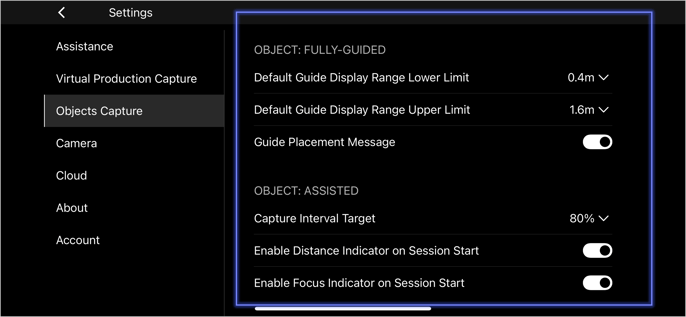
- Default Guide Display Range Lower Limit:Sets the height of the lowest level of the displayed guide.
- Default Guide Display Range Upper Limit:Sets the height of the highest level of the displayed guide.
- Guide Placement Massage:Enables or disables the message displayed after the guide is placed.
- Capture Interval Target(Object Capture mode only):Changes the target overlap between images to a specified value. A higher value results in a shorter shooting interval.
- Enable Distance Indicator on Session Start:Displays the distance indicator when a session starts.
- Enable Focus Indicator on Session Start:Displays the focus indicator when a session starts.
Settings: Camera
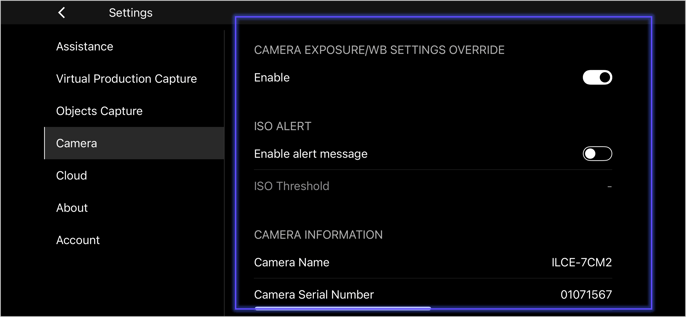
- !Important
Camera Exposure/WB settings Override:Overwrites the camera's exposure and white balance settings with the app's default settings. To use specific exposure or white balance settings, turn this off and configure them on the camera. - ISO Alert:Sets the ISO threshold. An alert is triggered if the ISO Auto value reaches or exceeds this setting.
- Camera Settings:Enables camera settings to be changed from the app.
*Default settings for each mode
Mode
SS
F-number
ISO
WB
VP
1/250
8.0
Auto
Auto
Object
1/125
8.0
Auto
Auto
Settings: Cloud *Beta
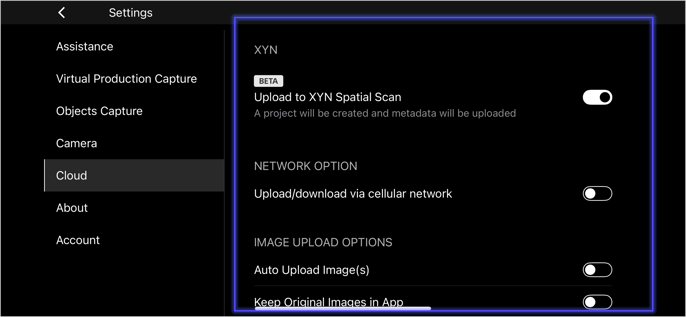
- Enable Upload to XYN Spatial Scan:When you create a project in Navi, a project is automatically created in XYN Spatial Scan and metadata is uploaded automatically.
- Upload/Download via Cellular Network:Uploads images even when using Cellular Network.
- Auto Upload Image(s):Automatically uploads captured images in the background during the session.
- Keep Original Images in App:Keeps the original camera images in the app. Turning this off is recommended as camera images are large.
- Resize Images to 4K:Resizes camera images to 4K before uploading.
Settings: About This App
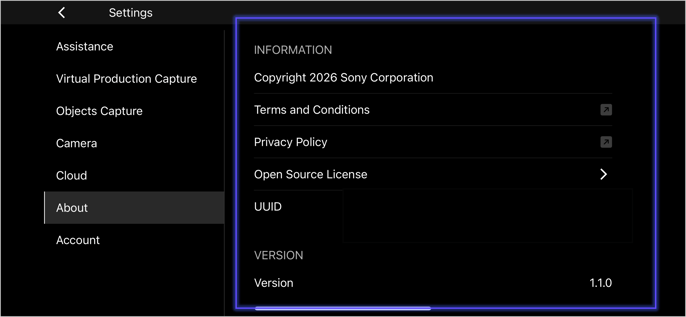
-
Copyright:Displays the copyright notice.
-
Terms of Service:Displays the Terms of Service.
-
Privacy Policy:Displays the Privacy Policy.
-
UUID:Displays the UUID.
-
Version:Displays the application version.
-
Open Source License:Displays the Open Source Licenses used in Navi.
Settings: Account
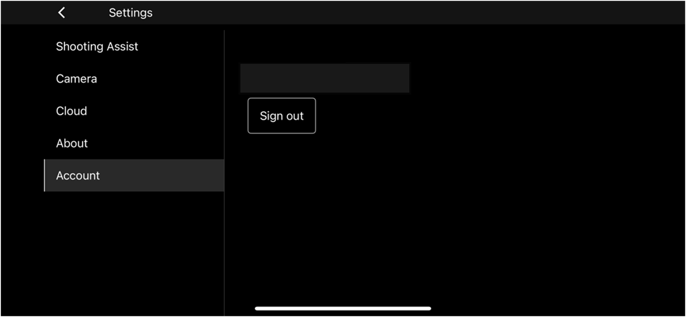
-
User name:Displays the user name and sign in address.
-
Sign out:Signs out.
Image Input/Output Flow
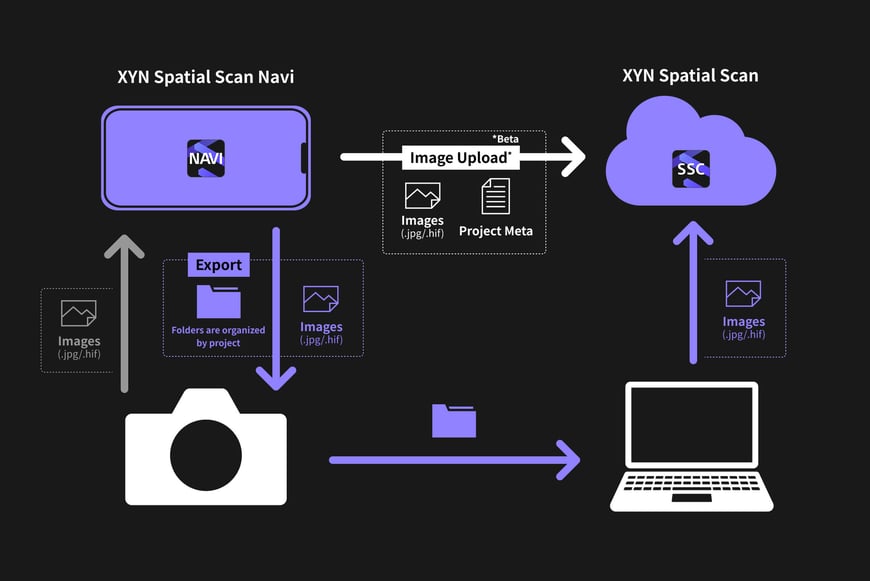
Other Operations
Changing Exposure Settings During Shooting
If Auto Shutter Mode is enabled, some exposure settings may not be adjustable. If you need to change the exposure settings during shooting, turn Auto Shutter Mode off before making adjustments.
Note: Mixing different exposure settings within the same dataset may affect model quality. Therefore, changing exposure settings during shooting is not recommended.
Reconnecting the Camera
If the camera icon has an × on it, the camera is not connected. Tap the icon to attempt reconnection.


