









In this article
An overview of the basic operations and screen interface for XYN Spatial Scan Navi in VP Mode.
*As of April 2026, this service is available for corporate customers with accounts. Contact us
*The screen images shown here are for illustrative purposes only and are subject to change.
Basic Operations and Interface Description: VP Mode
Shooting Screen
- Auto Shutter:Toggles Auto Shutter mode.
- Coverage Heatmap:Toggles Coverage Heatmap.
- Captured View:Toggles Captured View.
- Set Focus:Sets focus distance automatically.
Adjust Height:Adjust the height of the guide pattern. - Number of captured Guide Hex(es):Displays the number of captured Guide Hex(es).
- Image List:Displays a list of captured images.
- Bird's-eye View:Displays Bird's-eye View.
- Camera settings:Displays the current camera exposure settings and focal length.
- Exit:Exits capturing.
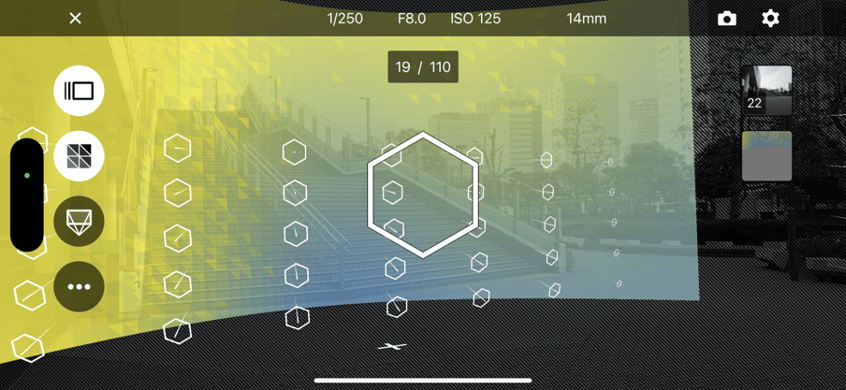
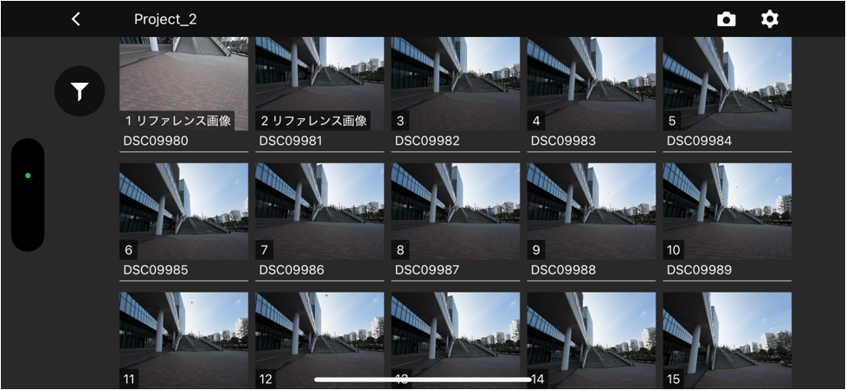
Image List
- Project name:The current project name.
- Filtering:Filters and displays images.
- Back:Returns to the previous screen
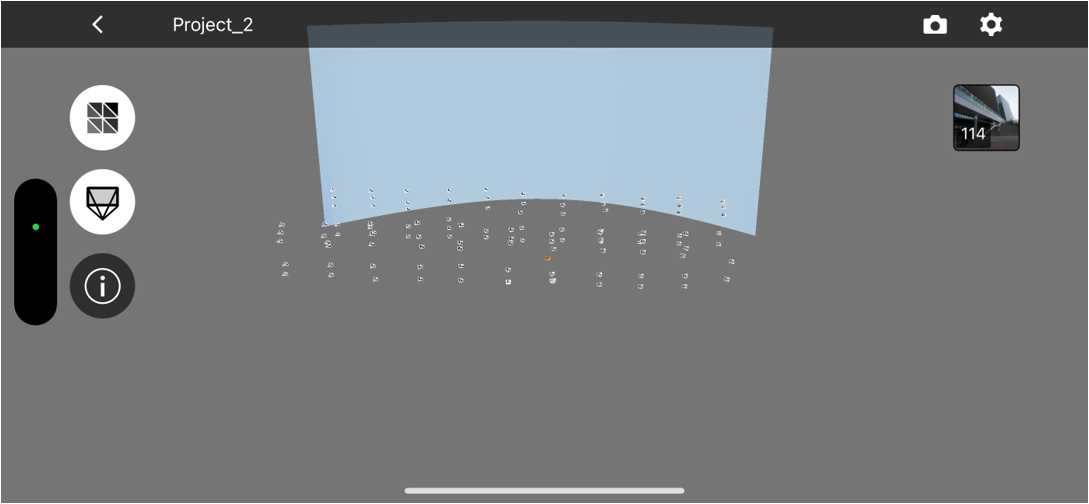
Bird's-eye View
- Coverage Heatmap:Toggles Coverage Heatmap.
- Captured View:Toggles Captured View.
- Information:Displays information about the camera and lens used for capture.
- Back:Returns to the previous screen.
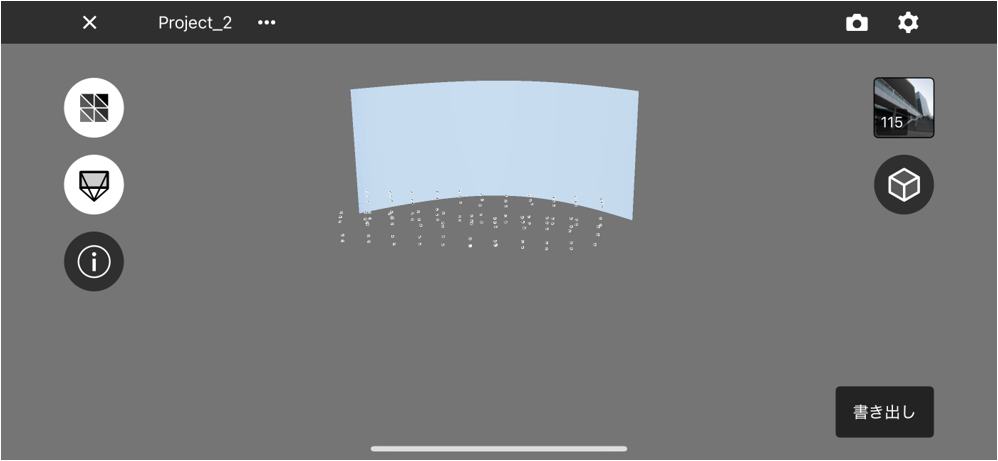
Project screen
- Viewer:Displays Real-time Mesh or 3D model.
- Model View:Switches Model view. If a 3D model has been created in XYN Spatial Scan, it can be downloaded to the app and viewed.
- Rename this project:Renames the project name.
- Compress original images:Compresses images in the project. Use this to free up storage space on the smartphone.
- Delete this project:Deletes the project.
- Export:(Displayed only when images are not compressed) Exports images and project metadata.
- Upload:(Displayed only when not uploaded) Uploads images to XYN Spatial Scan。
- Process (only after upload is complete):Creates a model by selecting an algorithm for a project with images already uploaded to XYN Spatial Scan.
Shooting in VP mode
For instructions on how to capture virtual production backgrounds with XYN Spatial Scan Navi, see here.


