









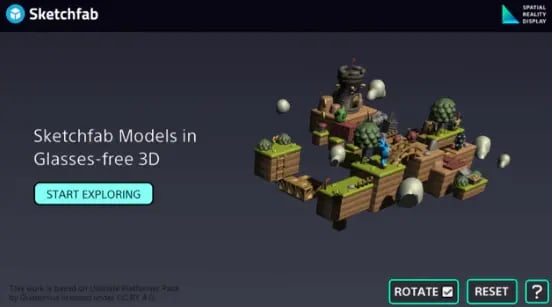
3D Viewer for Sketchfab
Sketchfab is a website you can use to share and view 3D models. You can also upload your own 3D models and publish or sell them. (See: Sketchfab)
3D Viewer for Sketchfab is an app that you can use to easily view all kinds of 3D models uploaded on Sketchfab on a Spatial Reality Display.
3D models that can be displayed
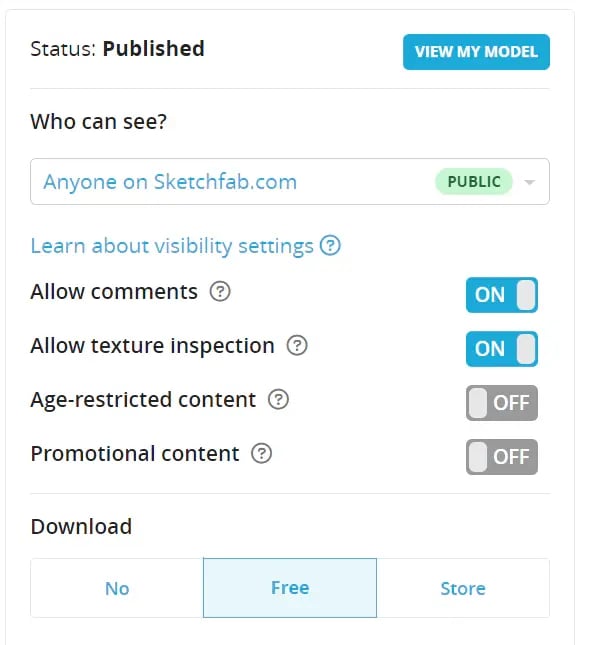
Only 3D models uploaded to Sktechfab that are available for "Free" downloads can be viewed on this app. To view a model that you uploaded to the app, open your 3D model in a web browser window, go to "EDIT PROPERTIES", and set "Who can see" to "PUBLIC" and "Download" to "FREE" to view the models.
Use the search bar on the app to search for a model by name and display the model. Once a model had been displayed once, it is cached and will be loaded quickly the next time you view it. For your convenience, you can open and cache the models you plan to use frequently in advance.

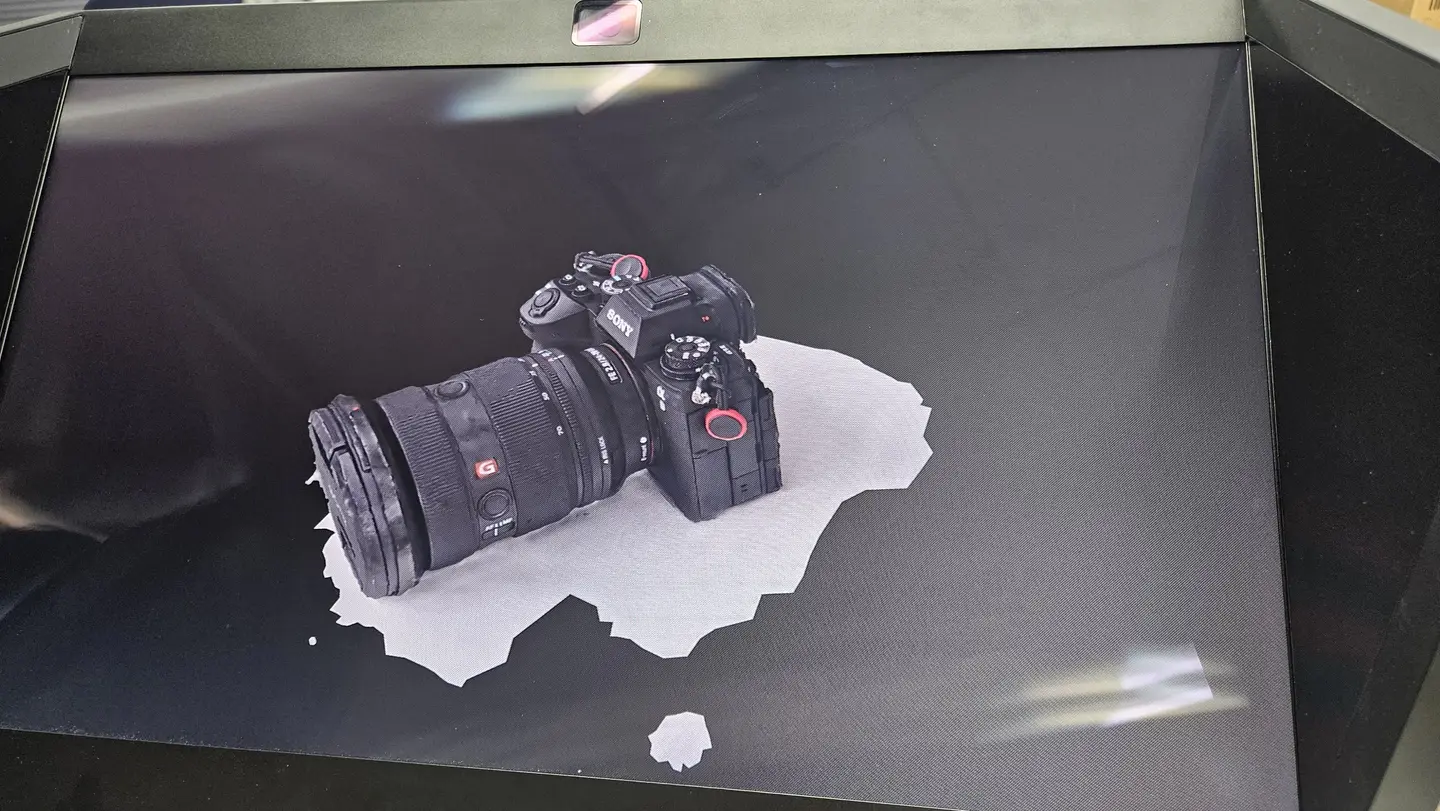
Application example: Creating a 3D model using the "RealityScan" photogrammetry app and viewing the model on "3D Viewer for Sketchfab"
RealityScan, a free smartphone app, allows you to easily generate photogrammetric content using your smartphone. (Please refer to the official manual for details on how to generate photogrammetric content.) The photogrammetric content generated is automatically uploaded to Sketchfab and can be displayed on a Spatial Reality Display using the 3D Viewer for Sketchfab.
When launching RealityScan for the first time, use an EPIC account to sign in. You will be able to view and download models by signing in to Sketchfab with the same EPIC account. 3D Viewer for Sketchfab is set to "PRIVATE" by default to prevent third parties from viewing your content. If you wish to showcase content on 3D Viewer for Sketchfab, refer to the previous section to change this setting.

How to launch this app
You can download the app and manual from the link below.
3D Viewer for Sketchfab
Unzip the downloaded file and double-click "sketchfabSR2.exe" to launch the app. Refer to the manual for the operating instructions.
We hope you'll make use of these apps and experiment with viewing the various kinds of 3D models available on Sketchfab.
Reference
© 2023, Sketchfab, Inc. Sketchfab and the Sketchfab logo are trademarks or registered trademarks of Sketchfab, Inc. in the United States of America and elsewhere. All rights reserved.
Unreal and the Unreal logo are trademarks or registered trademarks of Epic Games, Inc. in the United States of America and elsewhere.


