









*What is the “Sketchfab”
Sketchfab is empowering a new era of creativity by making it easy for anyone to publish and find 3D content online. With a community of power 5 million creators who have published millions of models, Sketchfab is the largest platform for finding free and paid 3D content on the web https://sketchfab.com/.
*To download a model, you must first create an account on Sketchfab and agree with the Sketchfab, Inc. Terms of service.
Download the 3D content from the “Sketchfab”
Let’s test the following content on Spatial Reality Display.
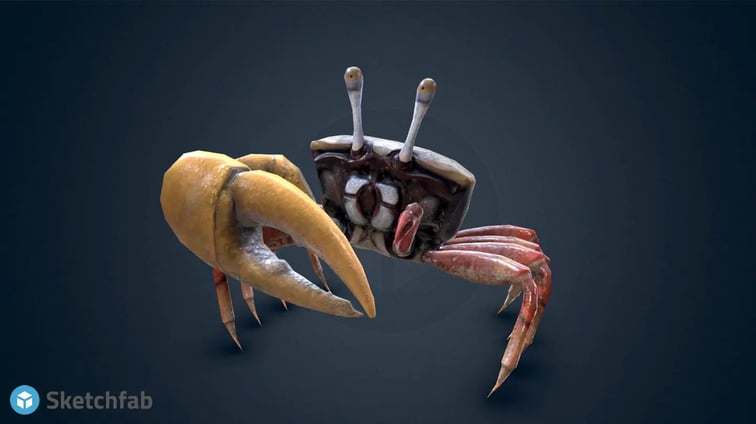 Dancing Crab - Uca Mjoebergi by Bohdan Lvov is licensed under Creative Commons Attribution.
Depending on the content, you can select and download multiple types of 3D file formats. Unity supports various 3D file formats such as fbx, obj, so you can display them in the Spatial Reality Display. In this tip, let’s use the glTF file format.Download the glTF file from the above link to your PC.
Set-up
For this setup, let's display 3D content using Unity Game engine.
If needed, please refer the detail of Unity set-up. (Set up for Unity.)
Place the 3D content in Editor.
- Launch Unity Editor and Create a new project.
- Set-up Sketchfab plugin for Unity.
*Sketchfab for Unity(plugin) allows you to easily import downloaded data from Sketchfab into Unity. See Sketchfab web page for more information.- Download plugin package from Sketchfab for Unity.
- Import it into your Unity project from the Assets > Import package > Custom package Menu.
- Import downloaded 3D Content into your project.
- Open Importer window from Sketchfab > Import glTF.
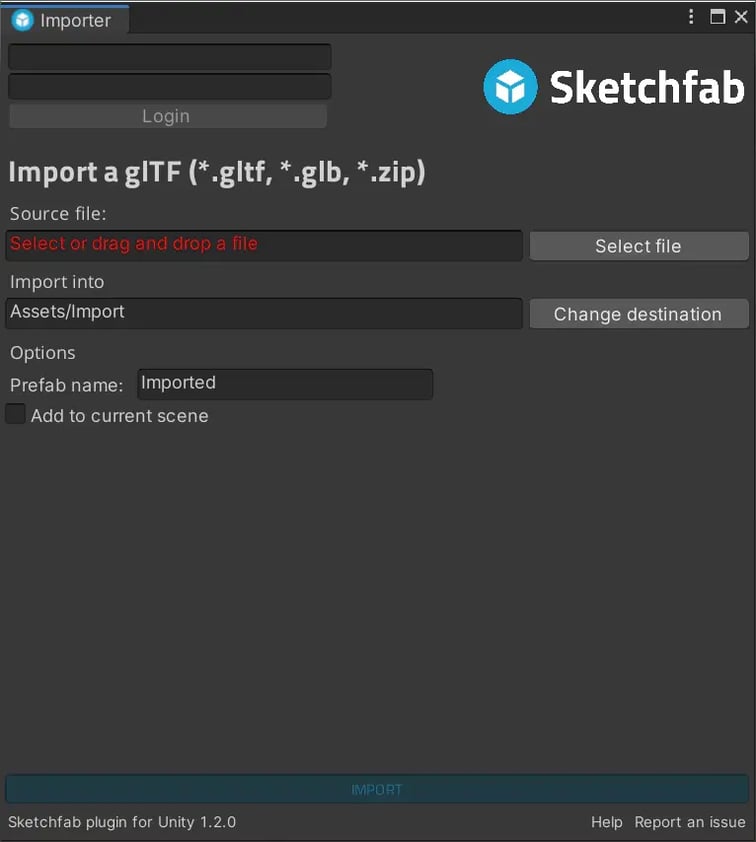
- Drag the downloaded 3D Model file(.zip) and drop onto Importer window.
- Click IMPORT.
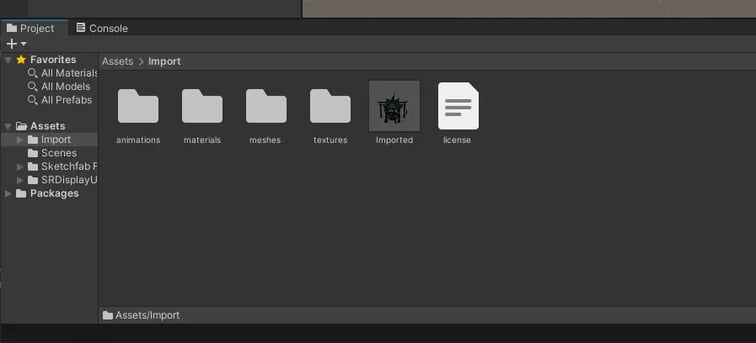
Prefab(default name is "Imported") and some data are created under Assets / Import folder.
- Place the SRDisplayManager node into the scene.
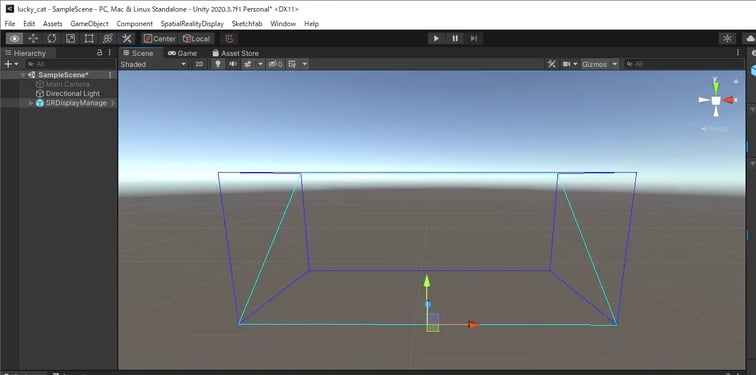
- Place the SRDisplayBox object into the scene.
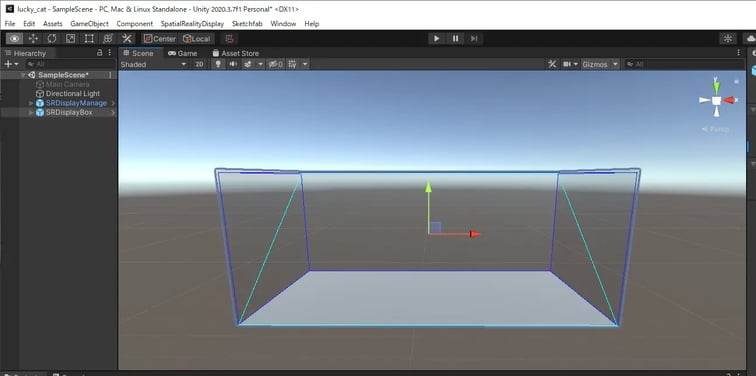
- Place the imported 3D content within the box area.
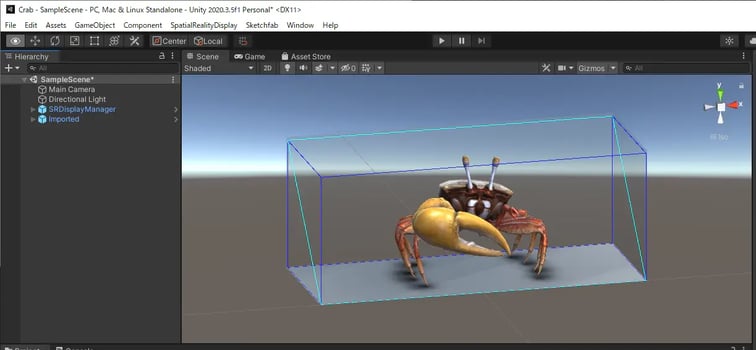
At the beginning, put it in a box so that it does not stick out.
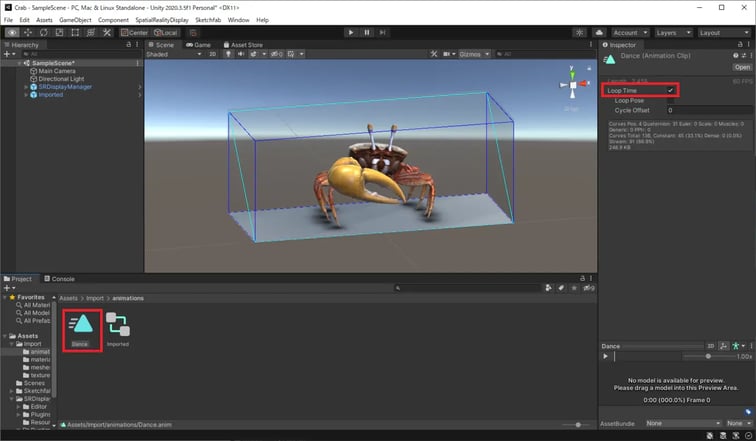
- Check Loop Time of animation clip under Import/animations folder.
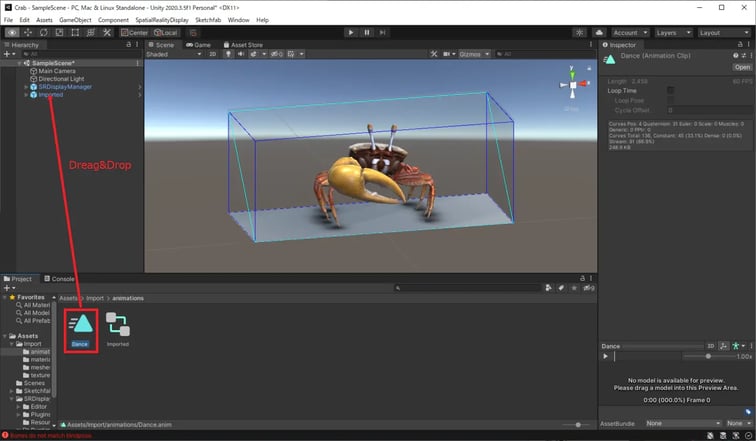
- Drag animation clip and drop onto prefab named "Imported" in Hierarchy window.
- Adjust the position, direction, size.
At first, try arranging them in the box. - Set up the lighting.
You can create a more 3D effect experience by devising the lighting. - Make a build.
Display the content on the Spatial Reality Display
Click the executable file then the content will be shown on Spatial Reality Display.
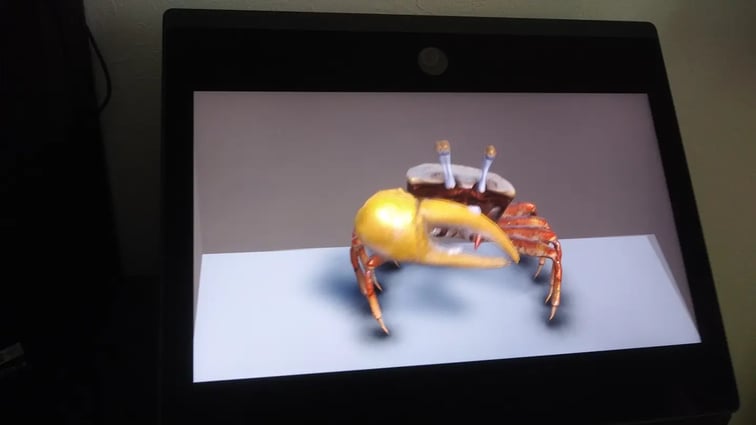
Does it look 3D when you look into it from above or when you look at it from the side? If not, there are some tips for creating contents to make it feel more 3D on the Spatial Reality Display. This provides content guidelines, please refer to it.
Introduction of 3D Robot Modeling Challenge prize-winning works
Sketchfab and Sony Electronics recently hosted a contest focused on robot modeling. Winners were chosen based on specific criteria. Below you can see and view a couple of the designs that were selected as winners. To find out more information about this contest, you can visit the link here:
- Reap the Whirlwind
https://sketchfab.com/3d-models/reap-the-whirlwind-297e1595d6cf4466bf5c7803db8c5bd8 - Roo-Bot
https://sketchfab.com/3d-models/roo-bot-cde81dc5e6104fd9acc7b26797324e11 - Lucky Cat Chop House
https://sketchfab.com/3d-models/sony-robot-challenge-lucky-cat-chop-house-afe61cff49d94971a1f11811a4f15d73


