








What is crosstalk?
The Spatial Reality Display produces an image with a parallax effect, delivering a separate version of the image to the left and right eye to create a realistic three-dimensional image. When there is a large contrast in the colors or brightness of objects that are placed one before the other, however, this can cause unwanted effects such as image ghosting.
This type of effect is referred to as crosstalk.
SDK website link: About Crosstalk
When crosstalk occurs, it can take away from the overall 3D effect. Here are some techniques for tailoring the way you create content to mitigate crosstalk.
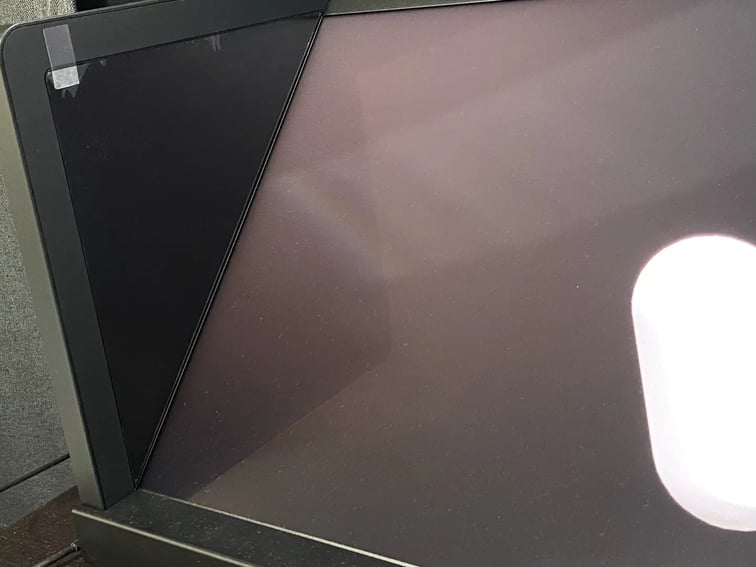
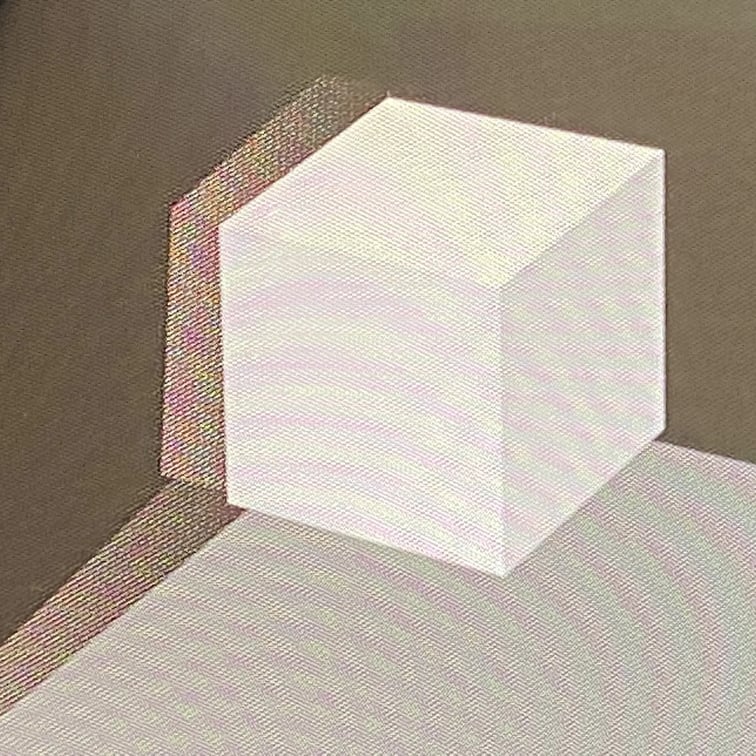 Where ghosting is visible
■ Methods of reducing crosstalk
There are the following two methods of reducing crosstalk:
- Reduce the color contrast between adjacent objects.
- Avoid placing the content you wish to display at the edges of the screen.
■1. Reduce the color contrast between adjacent objects
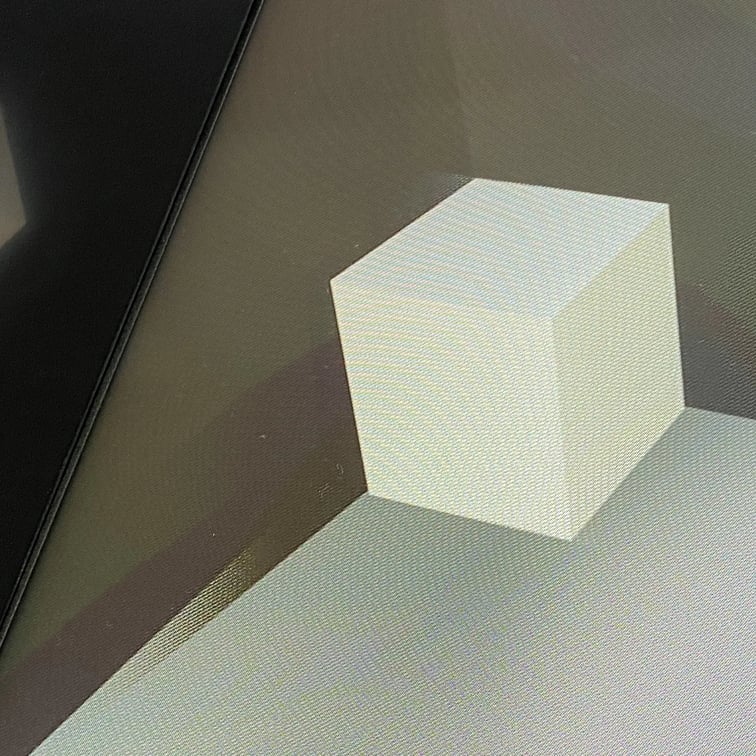
As shown in the photos below, this is a method of reducing crosstalk by reducing the color contrast between the objects on which crosstalk is occurring.
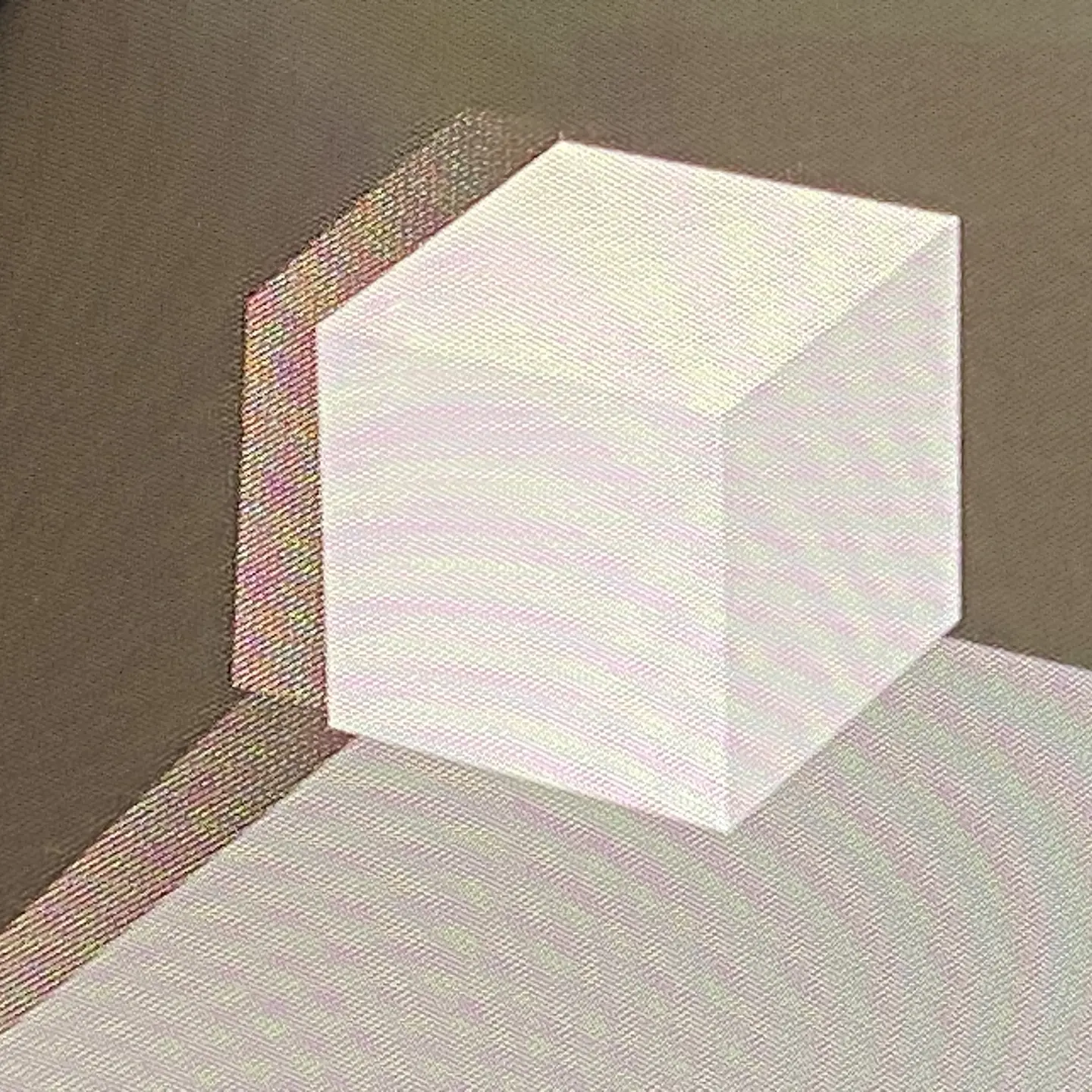
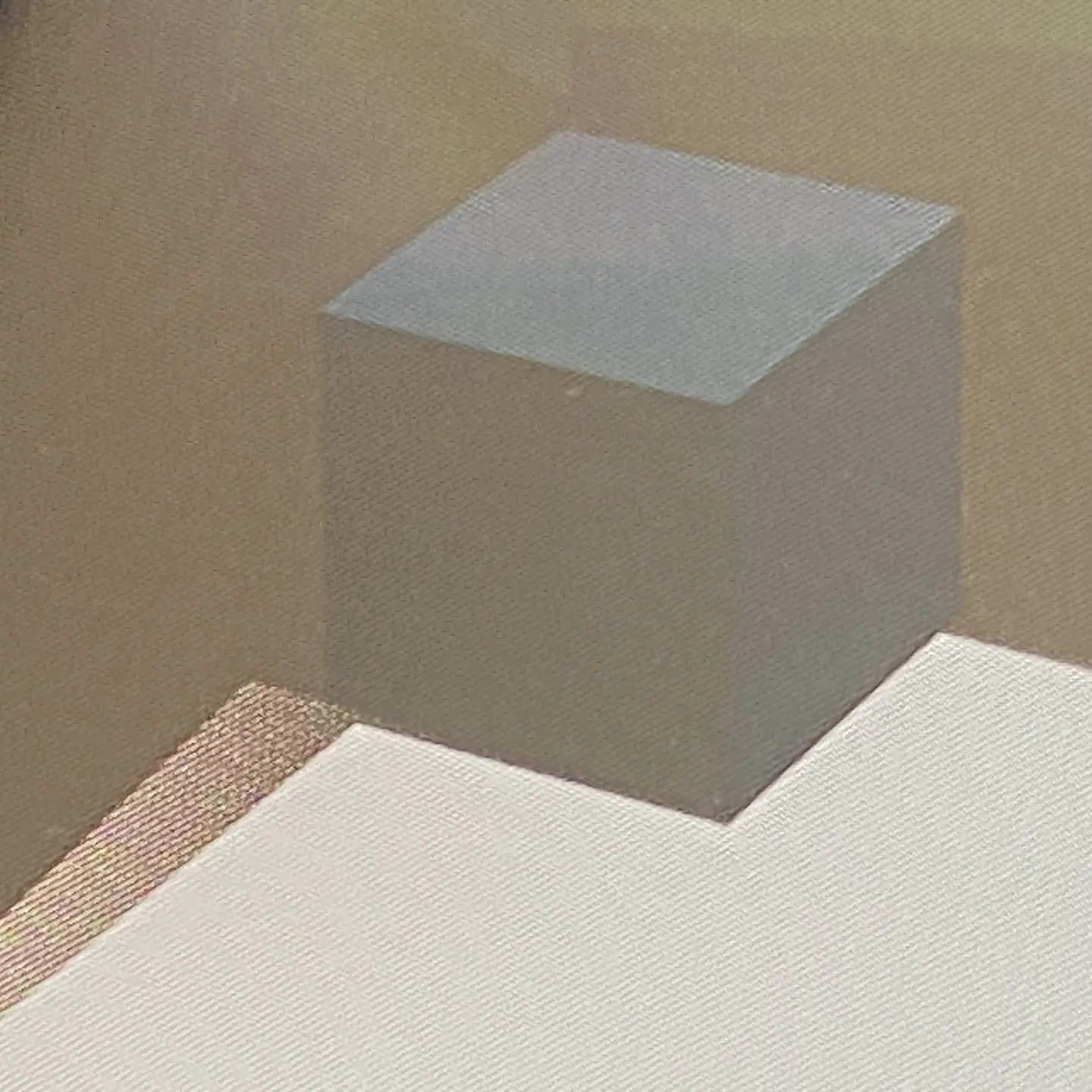

Example of changing the colors of a cube from white to dark gray and then to black. The reason why crosstalk becomes more noticeable again in black is because the background used is not completely black.
While it is not visible in the photo, with the reduction of crosstalk on the left part of the cube, crosstalk becomes more noticeable where the cube and the floor meet.
If you do not wish to change the colors of the object, making adjustments to the lighting so that light does not hit the edges of the object is also an effective way of reducing crosstalk.
■2. Avoid placing the content you wish to display at the edges of the screen
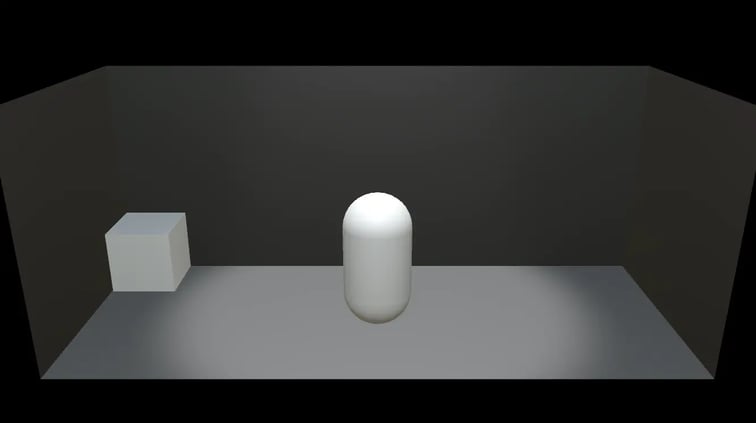
This is a way to prevent drawing the viewer's attention to parts of the screen where crosstalk is likely to occur.
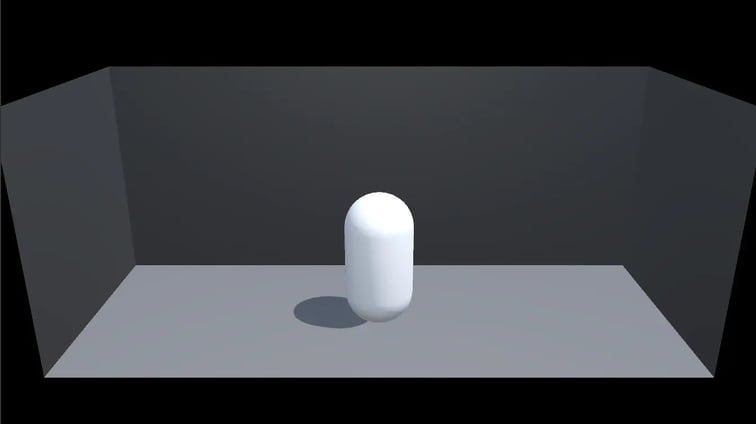
Example of placing an object you want to display in the center. Because there is nothing else on display, even if the object in the center is moved, the viewer's attention is drawn to it as long as it is not moved to the edge of the screen. This in turn makes it less likely for the viewer to notice any crosstalk at the edges of the screen.
It is also helpful to not place moving objects at the edges, because humans tend to turn their attention to moving objects.

Example of displaying nothing around the object you wish to display placed in the center. While it makes sense that there would be no crosstalk if there is nothing else on display in the first place, it is also harder to make the content appear three-dimensional compared to if a display box were used.
Depending on the background color and the installation environment, the side panels may also appear to reflect off the display, creating a simulated display box that could help make the image appear more three-dimensional.
Taking these techniques into account when making content can help substantially improve your content quality. Give these techniques a try if you are looking to reduce crosstalk.
HoloLab Inc. offers consultations on development that utilizes of all kinds of devices, including the Spatial Reality Display.
To learn more, please feel free to contact us on the following websites: