In this article
Import images
Select modeling algorithm
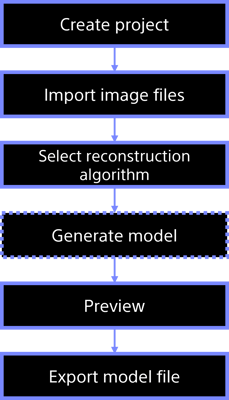
The steps to start generating 3DCG assets with XYN Spatial Scan.
*As of April 2026, this service is available for corporate customers with accounts. Contact us
*The screen images shown here are for illustrative purposes only and are subject to change.
XYN Spatial Scan is a cloud application that transforms multiple photographs into high-quality 3DCG assets of real-world spaces. Using Sony's proprietary algorithms, it precisely estimates the shape and texture of subjects, reproducing them as production-quality 3DCG assets. No complex setup is required; generation is possible with just a few clicks.
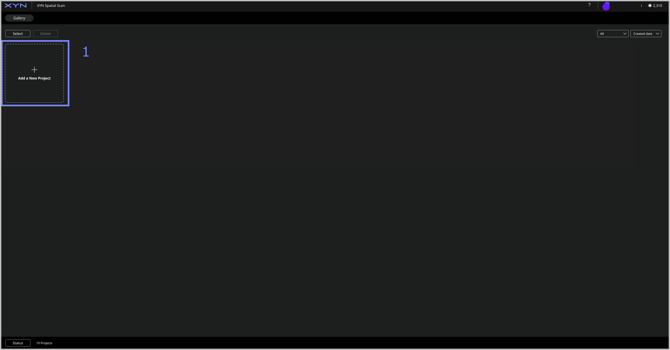
Create a project
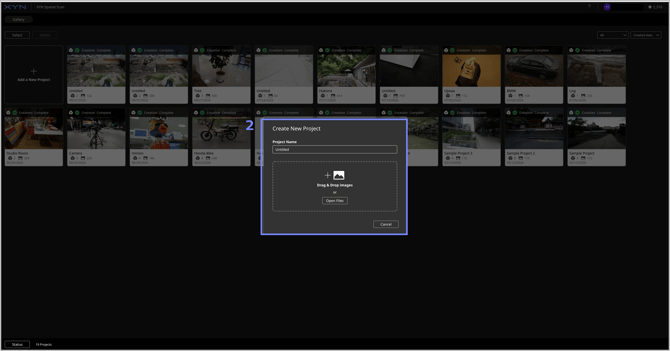
- Click 'Add New Project’
- Enter the project name and create a new project.
Import images
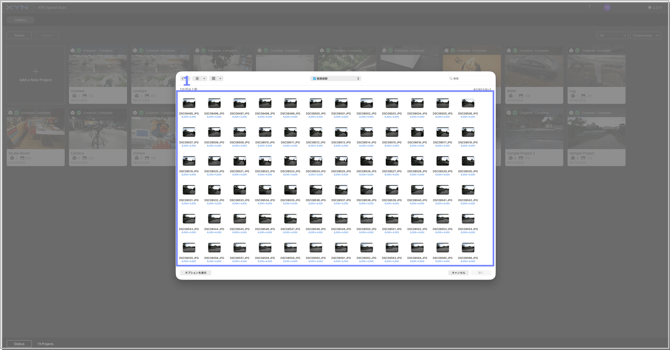
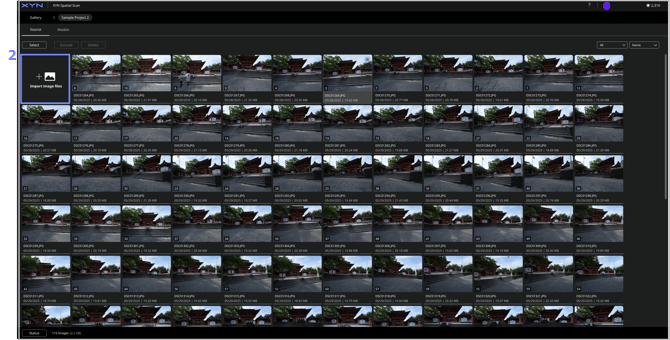
- Select the image files to use as the source and start import.
- You can add image files by selecting the “+ Import photo files" button in the top-left corner to import the additional files.
Select modeling algorithm
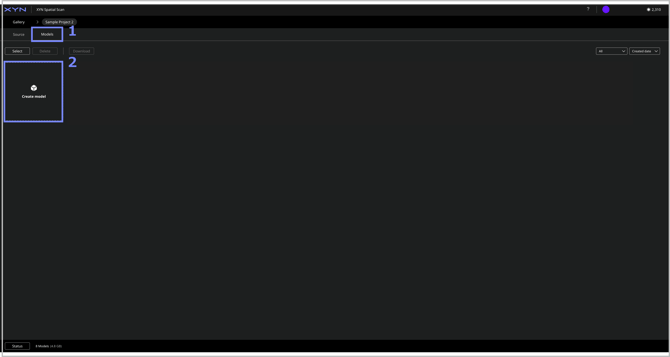
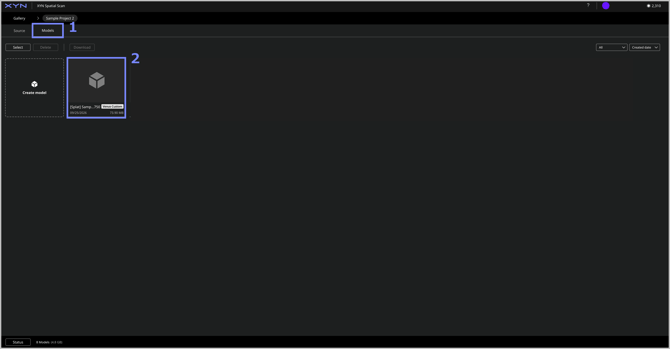
- Go to the Models tab.
- Select "Create model".
- Select the “Venus Custom” algorithm.
Tips: How to choose and configure a reconstruction algorithm
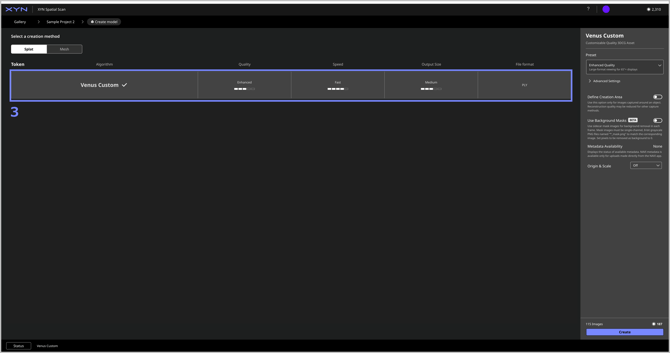
Creation Settings
- Select the creation settings from the panel on the right. The amount of required Tokens varies depending on the selected settings.
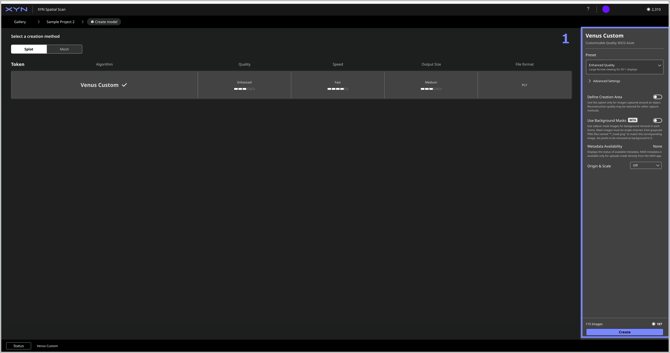
- Select the desired creation quality from the presets.
- Basic Quality: Designed for viewing on a 32” monitor. Recommended for previs and product evaluation.
- Enhanced Quality: Designed for viewing on a 65” display. Recommended for showcases and customer presentations.
- Advanced Quality: Designed for viewing on LED walls of 300” or larger. Recommended for virtual production and broadcast.
- Extreme Quality: Designed for viewing on LED walls of 300” or larger with HDR support.
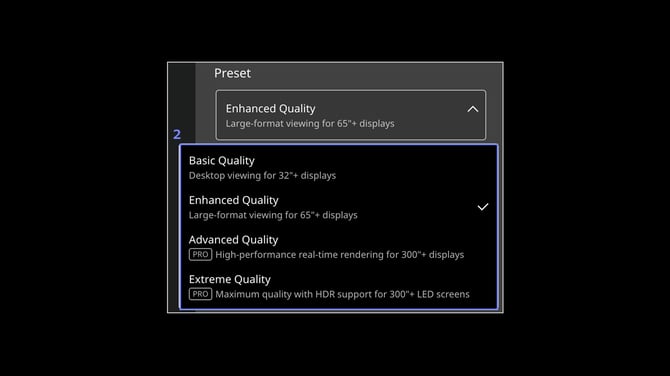
- Configure the advanced settings.
- Input Image Resolution: Select the resolution of the images used for generation.
- Splat Count: Select the number of Splats to generate.
- Color Profile: Select the color space and gamma used for generation. To use S-Gamut3.Cine/S-Log3, images captured in S-Log3 are required. Input Image Resolution must also be set to High, and Splat Count to High Definition.
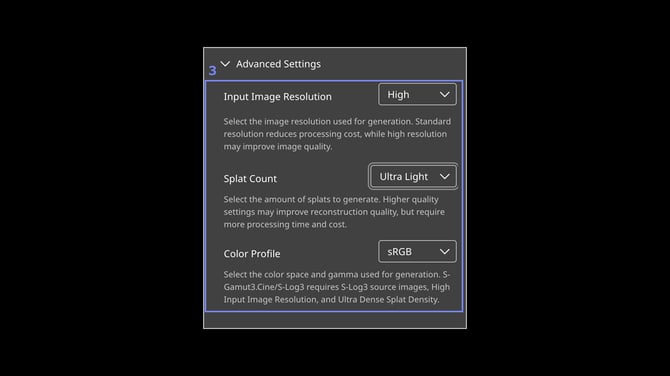
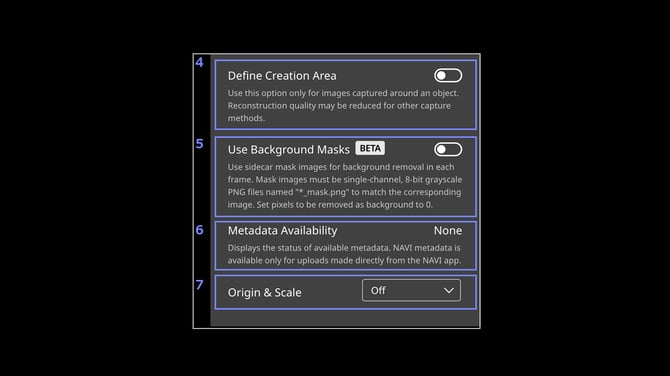
- When enabled, you can specify the area to be created.
- When enabled, model can be created with a background mask for the sky. (Beta feature)
- Displays the status of metadata captured using the XYN Spatial Scan Navi app.
- Configure the origin and scale.
- Once the settings are complete, select Create.
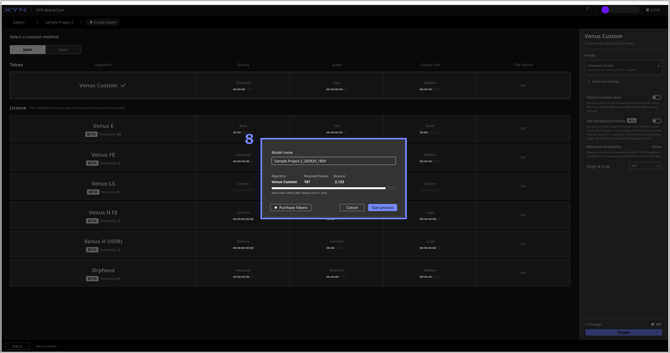
- Generation completes after processing.
Preview model
- Go to the Models tab.
- Select a created model.
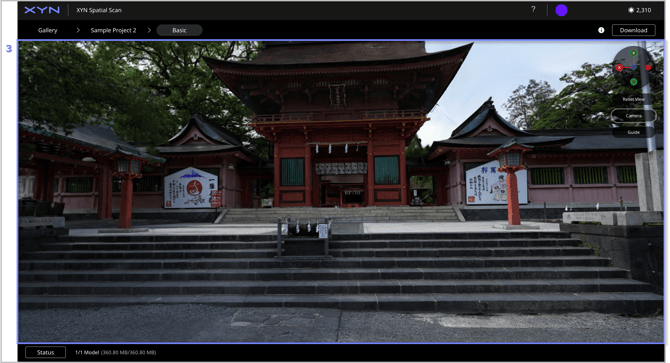
- Preview model
Navigate the screen with mouse
- Orbit: Drag with the left mouse button
- Pan: Drag with the right (or middle) mouse button
- Zoom: Rotate the mouse wheel
- Alight: Click X, Y, Z of the Gizmo
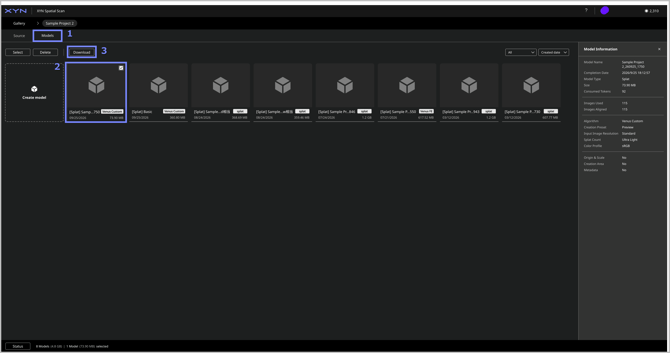
- Go to the Models tab.
- Select the model to be downloaded.
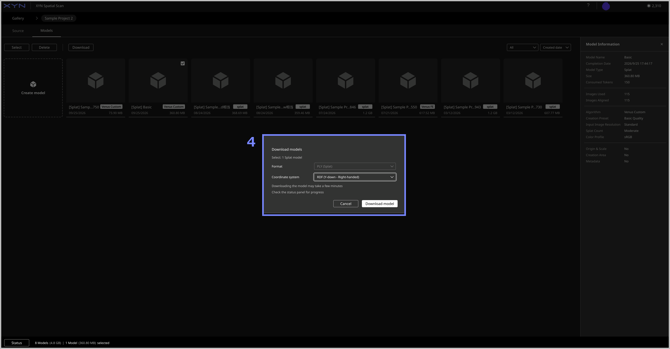
- Click Download.
- Model download will start.