
In this article
This section describes the basic operations and screen functions of XYN Spatial Scan.
*As of April 2026, this service is available for corporate customers with accounts. Contact us
*The screen images shown here are for illustrative purposes only and are subject to change.
Screen Descriptions
Application TOP
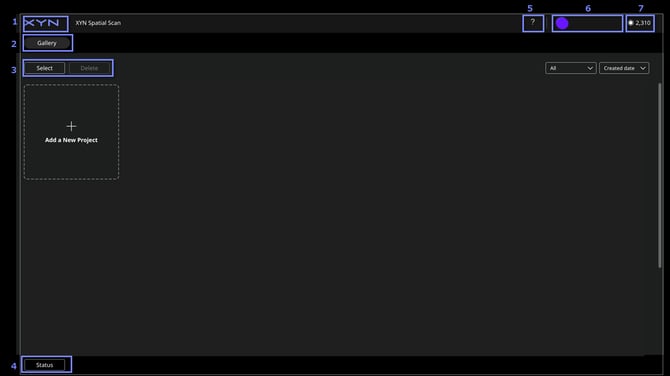
- Home:Link to the XYN Home app displaying the list of applications.
- Gallery:Displays a list of projects created with XYN Spatial Scan.
- Select/ Delete projects:Allows you to select or delete any project from the list.
- Status:Displays various statuses, including the remaining processing time and the download status of generated data.
- Support:Navigates to the support page.
- Account:Allows you to display XYN Spatial Scan settings and XYN account settings.
- Token:Display the amount of token you have.
Image Import
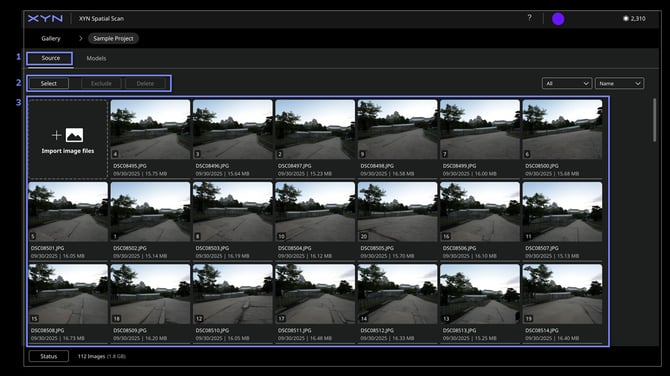
- Source:Displays the image data imported into the project.
- Select/ Exclude/ Delete image files:Allows you to select, exclude, or delete any image data from the list.
- Imported image files:Displays a list of all image data that has been imported.
Generation Algorithm Selection/Setting
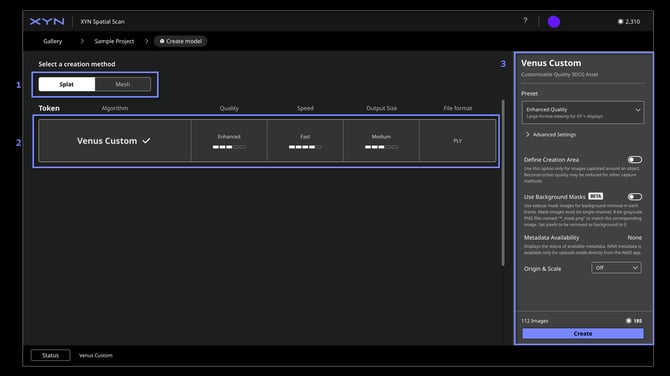
- Create Splats/ Create Mesh:Allows you to select the generation method for the 3D CG asset.
- Generation Algorithm:Allows you to select from the proprietary generation algorithms provided by XYN.
- Generation Algorithm Setting:Allows you to review and adjust the settings required for generation.
Generated Model Selection/Deletion/Download
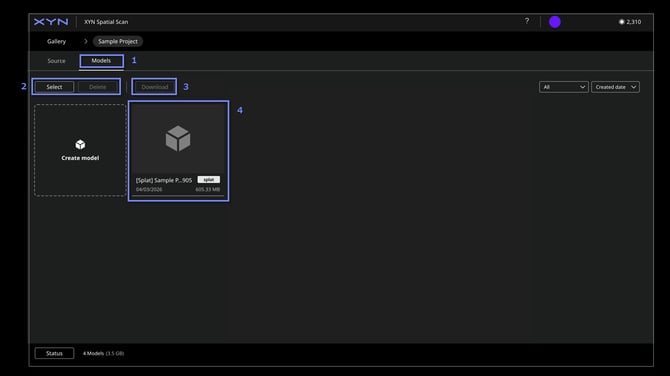
- Models:This screen allows you to generate 3D CG assets based on imported image data or review the generated data.
- Select/ Delete models:Allows you to select or delete any generated 3D CG asset.
- Download:Allows you to select or delete any generated 3D CG asset.
- Created models:Displays a list of all generated 3D CG assets. You can also navigate to the asset generation screen via "Create model from Source".
Preview
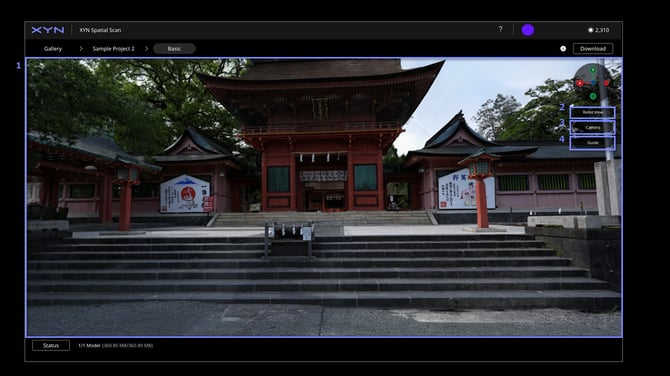
- Preview window:Display created 3DCG asset.
- Reset View:Reset viewing position.
- Camera:Display camera position used for the model creation.
- Guide:Display operation guide.
Mouse-based screen operations
Orbit:drag with the left mouse button
Pan:drag with the right (or middle) mouse button
Zoom:rotate the mouse wheel
Align:click X, Y, or Z on the gizmo