
Search Motion By Text
Search
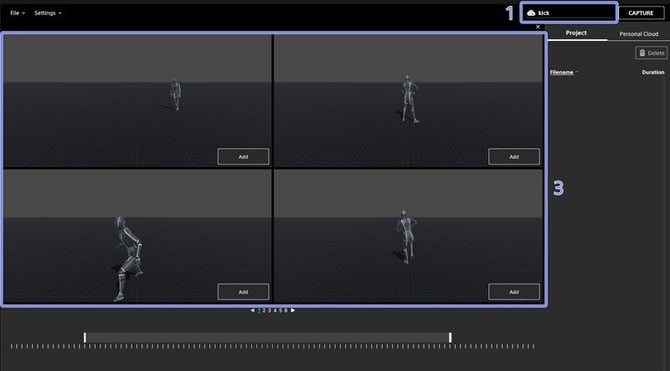
- Enter your text in the search area
- Press the enter key.
- Once search results are ready, they will be displayed on the left side of the app.
- Each individual search result can be viewed in detail, you can navigate within the 3D space of each result, in a similar way to what is described in the Moving the 3D Camera section.
Reviewing and Selecting Search Results
- Results will begin to be dynamically loaded, and results will populate on the screen.
- Use the pagination buttons at the bottom to navigate through the pages of results.
- Click on [Add] to add the clip to the project. The clip will be added to the [Project] tab, and [Add] will change to
 .
. - Clips with are listed in the [Project] tab. Clicking on again will delete the clip from the project.
- To return to the Home Screen, users will click the “X” in the upper right-hand corner of the Search Motion Results Window.
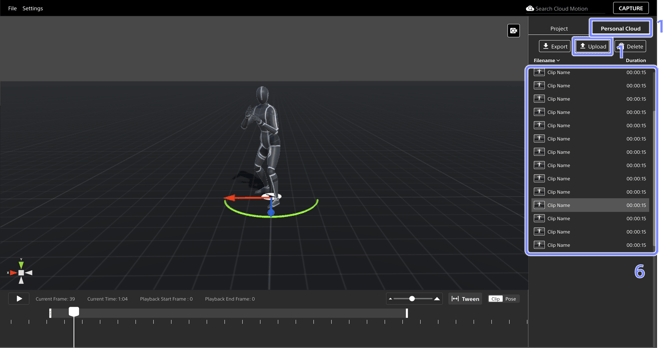
- Open the [Personal Cloud] tab in the side panel and select [Upload].
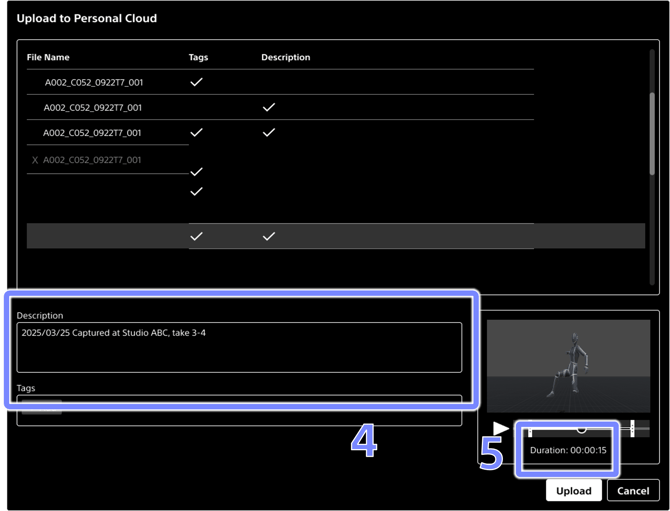
- Using the File browser popup, navigate and find the motion file(s) you want to upload.
- With the file(s) selected, Press [Open].
- Enter any description in the [Description] field and add any relevant tags in the [Tags] field.
- Click the [Upload] button.
- Once the upload is complete, the new motion file will appear in the [Personal Cloud] tab.
- You can view the tags you added by double-clicking the file name in the [Personal Cloud] tab.
Note
Motion file(s) (BVH, FBX) created with mocopi is supported.
Setting motion data tags
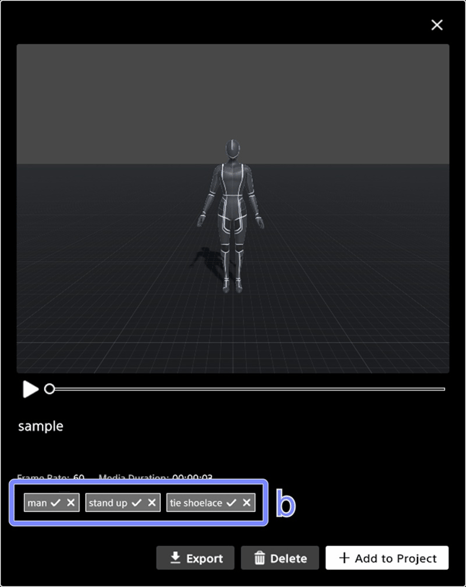
Confirming suggested tags
- When motion data is uploaded to the cloud, the video content will be analyzed and suggested tags will be automatically generated.
- The suggested tags can be confirmed in the screen that appears by double-clicking on a file name listed in the [Project] tab.
- Click on
 2 to approve or the x icon to dismiss the suggested tag.
Tagging manually
- In the screen that appears by double-clicking on a file name listed in the [Project] tab, click on an area where tags are not displayed and enter the tag name.