








In this article
This article explains how Define Creation Area works with “Venus Custom” in XYN Spatial Scan, when to turn it on and off, and the steps for generating a 3DCG asset of a single object.
*The screen images shown on this page may differ from the actual display depending on the version.
*The screens on this page are shown in Japanese. The English display uses the labels quoted in the text.
What is Define Creation Area?
Define Creation Area extracts only the object you want from data imported as a wide-area scene. Generation uses “Venus Custom” of the XYN Venus algorithm, the same algorithm used for wide-area scenes, so you do not need to shoot the object again. Fit a bounding box to the point cloud, and only the enclosed area is generated.
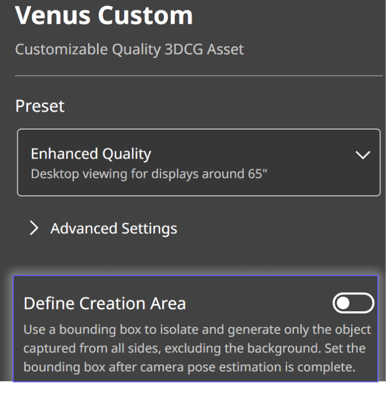
What changes between ON and OFF
|
Define Creation Area |
What is generated |
Typical use |
|
OFF |
The entire scene |
Background assets for |
|
ON |
Only the enclosed area |
Viewer exhibits, editing in DCC tools and game engines |
Which one to choose
- Decide what the asset you are creating will be used for.
- To use the space itself as a background, leave Define Creation Area off. The entire scene is generated.
- To handle a specific object as a standalone asset, turn Define Creation Area on.
- When you turn it on, check that the object you want to extract fits inside the bounding box before you start generation.
How to use "Define Creation Area" to generation
Start creating a model
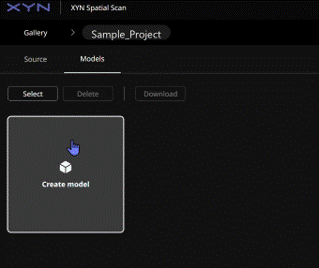
- Go to the “Models” tab.
- Select “Create model”.
Select a creation method
- Select the “Splat” tab.
- Select the generation algorithm you want to use from the list.
Select a quality preset
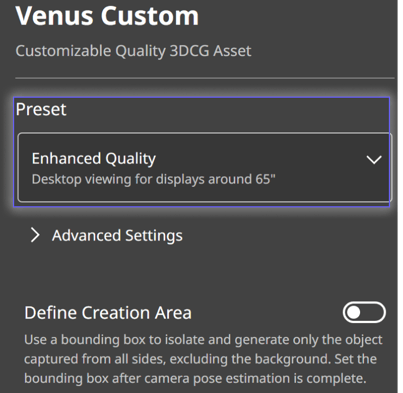
- In the panel on the right of the screen, select a quality preset under “Creation Preset”.
- For how to choose a quality preset, see Tips: Choose a quality preset for your use case (URL).
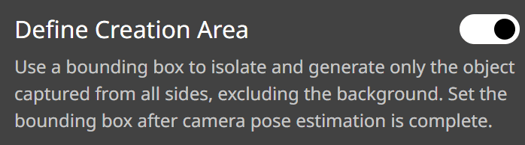
Turn on Define Creation Area
- Turn on “Define Creation Area” in the same panel.
- If you leave it off, the entire scene is generated.
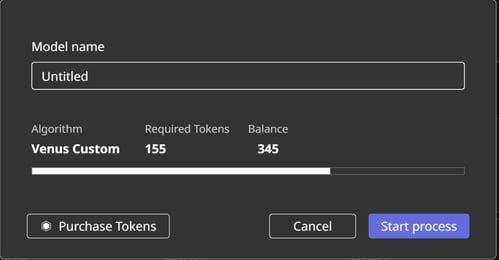
Start generating the model
- Press “Create”, check the model name and the number of tokens to be used, then start generation from “Start process”.
- The model is added to the “Models” tab, and “Calculating remaining time..” appears under the thumbnail.
Move on to specifying the creation area
- When camera alignment is complete, “Action Required” appears.
- Press “Set” to open the box editing screen.
- If you select “Later”, “Setting bounding box is required” appears on the model thumbnail.
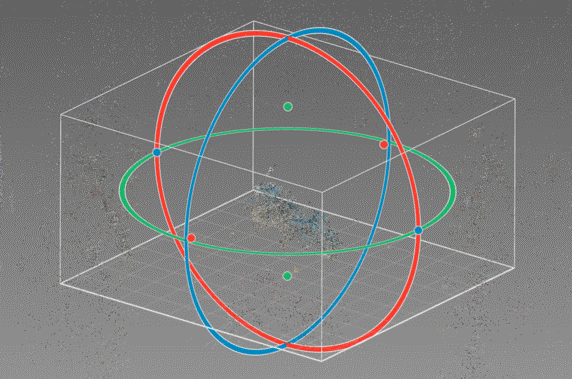
Move on to specifying the creation area
- When camera alignment is complete, “Action Required” appears.
- Press “Set” to open the box editing screen.
- If you select “Later”, “Setting bounding box is required” appears on the model thumbnail.
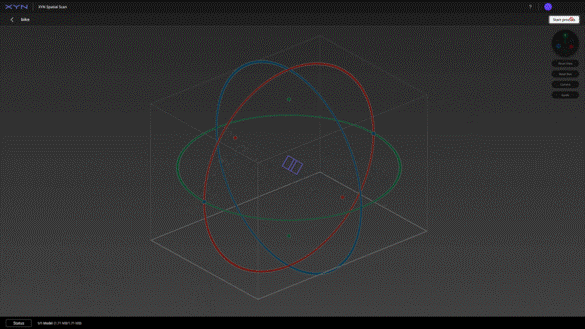
Run the generation
- Press “Start process” at the top right of the screen to start generation.
- The model is finished after a certain period of time.
Check the result
- Go to the “Models” tab.
- Select the model you generated.
- Only the enclosed area becomes a 3DCG asset, and the background is not included.
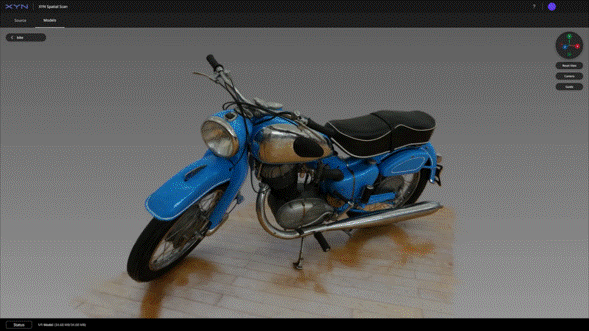
Checkpoints
- Whether the Define Creation Area setting matches the intended use of the asset
- Whether “Define Creation Area” is turned on
- Whether the whole object you want to extract fits inside the bounding box
- Whether the generated model contains any unintended background
How to improve generation quality
- When you generate an object, use “Object: Assist” mode in XYN Spatial Scan Navi and shoot images all the way around the subject. This gives higher generation quality.
- When you set the bounding box, keep the box within 130% of the size of the subject. This gives higher generation quality.
If something does not work
- “Action Required” does not appear: Camera alignment may not be complete yet. Check the status of the model on the “Models” tab. “Calculating remaining time..” appears while processing is running.
- You selected “Later”: “Setting bounding box is required” appears on the model thumbnail. You can carry on specifying the area from there.
- The entire scene or the background is generated as well: “Define Creation Area” may have been left off. When it is off, the entire scene is generated. Check the setting and create the model again.
- Part of the object is missing: Anything outside the bounding box is not generated. Check that the whole object fits inside the enclosed area, then fit the box again.


