









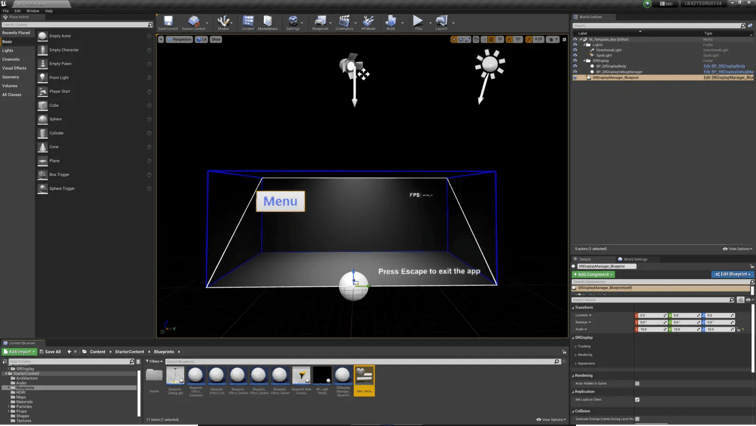
The UI appears to flicker or pops out too much.
When a 2D UI with descriptions and menus for three-dimensional content is displayed on a spatial display, the UI may be displayed as follows.
- The text or menu screen of the UI flickers, making it difficult to see the content.
- The UI is displayed more popped out (or further back) than intended or the parallax effect is too strong, making the content difficult to read.
This article introduces solutions to these issues.
Cause
SRDisplayPlugin generates separate images for the left and right eye, which may result in the misalignment of the original UI and coordinates.
Solution
One solution is to apply the Widget Blueprint of the text, menu, etc. as a Widget Component.
Steps
- Create the text, menu, etc. with Widget Blueprint.
- Create a Widget Component with Blueprint.
- Apply the Widget Blueprint created in Step 1 to the Widget Component in Step 2.
Specific Example
The following is a specific example of a solution for your reference.
Launch the Unreal Engine Project. Refer to Create your first app and make sure that the Spatial Reality Display Plugin is enabled and the SRDisplay Manager is in place.
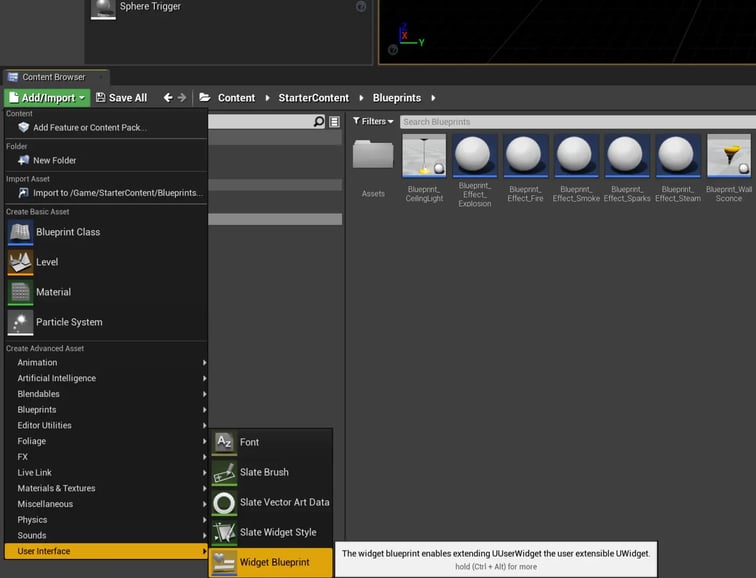
Select Content Browser > Add/Import > User Interface > Widget Blueprint. Create a Widget Blueprint (UI object) that will serve as text or a menu. Name the selected Widget Blueprint. In this example, it is named WBP_Menu.
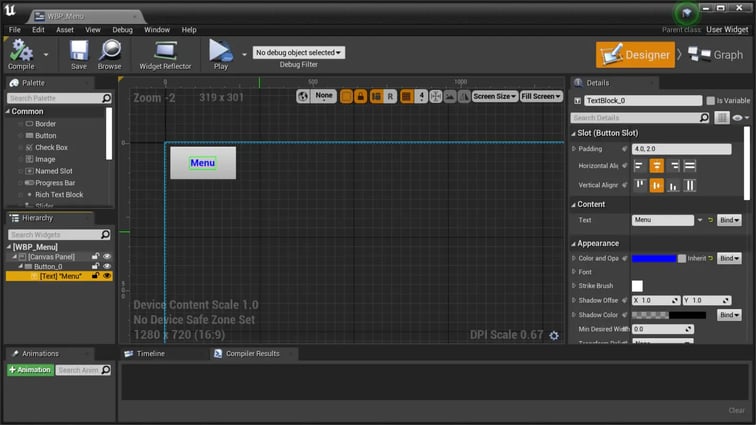
WBP_Menu is made into a simple UI object: blue text overlaid on a button. This corresponds to Step 1.
A Blueprint is created for SRDisplayManager and a Widget Component is added. This corresponds to Step 2.
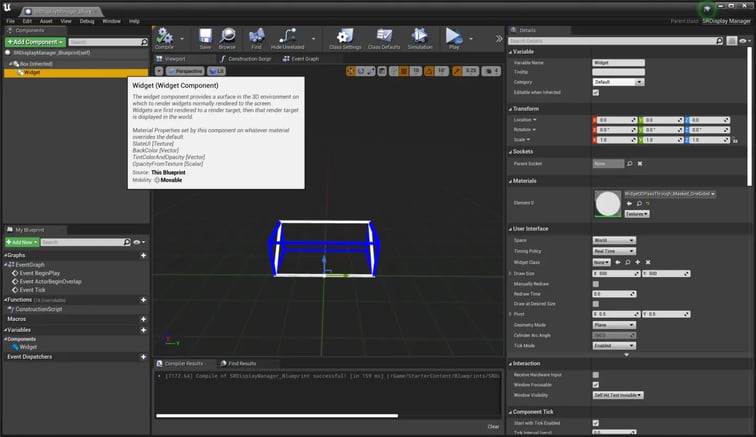
The Widget Blueprint is applied to the Widget Component that was added. This corresponds to Step 3.
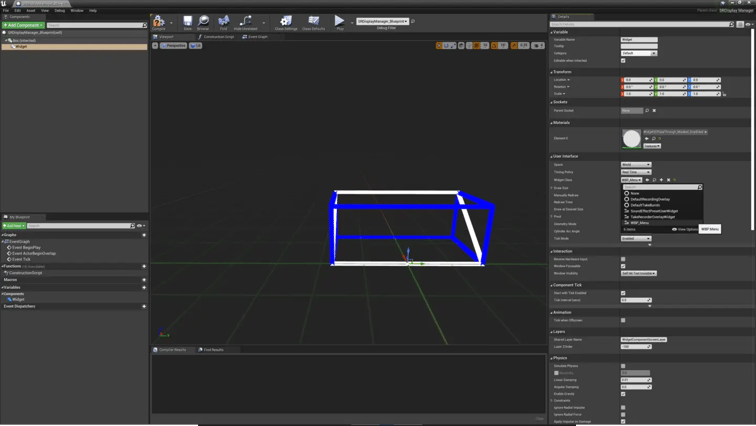
Adjust the size and positioning of the content until it is easily visible.
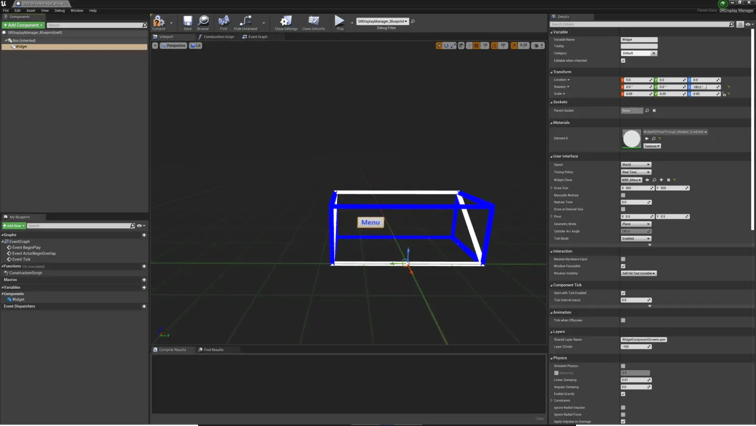
By adjusting the positioning of the content so that it overlaps with the Spatial Reality Display panel surface, a two-dimensional UI panel can be displayed with no three-dimensional effect.
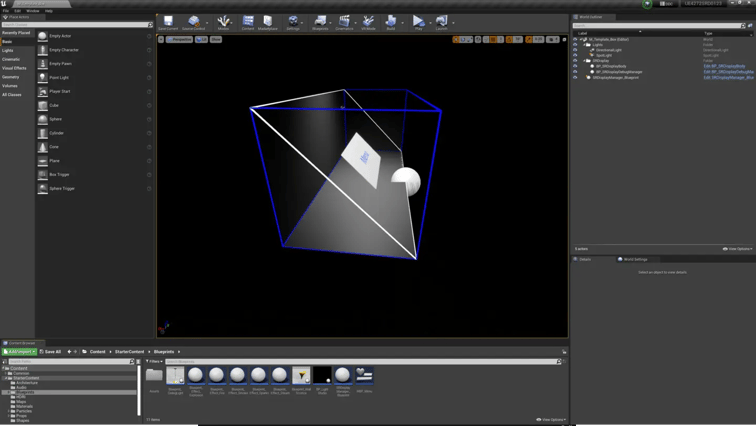
The proper display of your UI can greatly improve the quality of your content. We hope this page helps you optimize your UI layout.
Reference: How to realize an app that moves in Spatial Reality Display space - Unreal Engine


