

Here, we explain how to set up a metahuman to be animated using motion data from the mocopi application.
- Click [Window]>[Content Browser]>[Content Browser 1 - 4] in that order from the Unreal Editor menu bar.
The [Content Browser] tab/window appears. - Double-click your Metahuman blueprint in the [Content Browser] tab/window to open it.
- Click [+ Add]>[Skeletal Mesh] in that order from the Components tab, and enter any name.
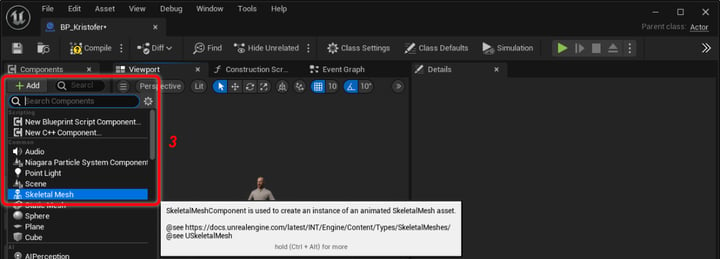
A Skeletal Mesh component is created.
For clarity, we name it "Source_SKM".
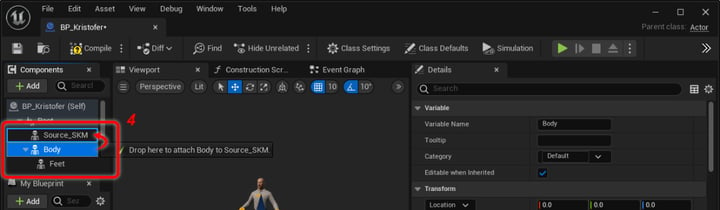
4. Drag and drop the "Body" component to be a child of the created Skeletal Mesh component in step 1.
5. Click [+ Add]>[Live Link Skeletal Animation] in that order.
A search for "Live Link" will quickly find it.
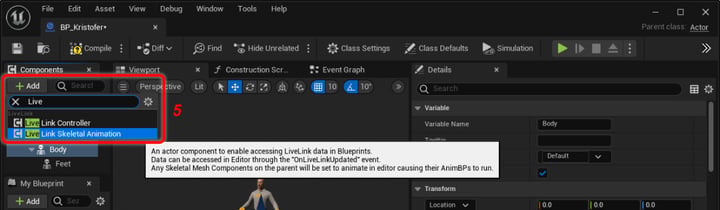
The "Live Link Skeletal Animation" component is added.
6. Click the "Source_SKM" component.
7. In [Details] tab, set the following items.
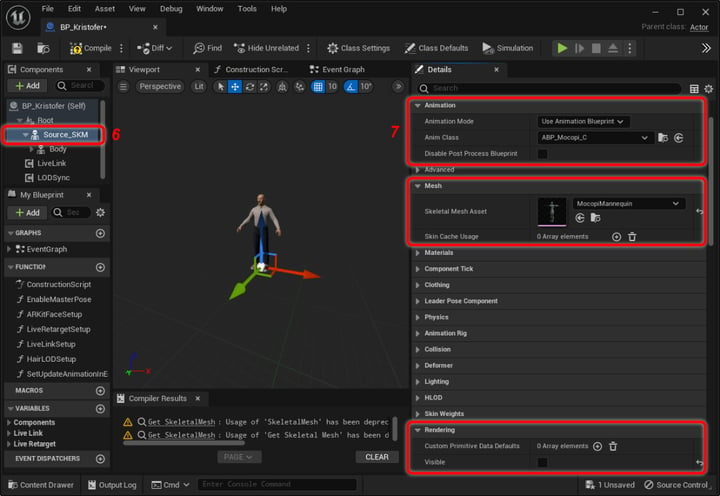
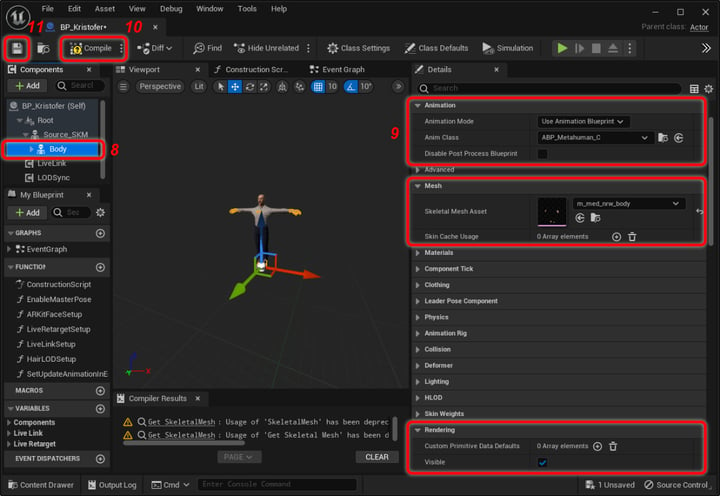
8. Click the "Body" component.
9. In [Details] tab, set the following items.
10. Click [Compile] button.
11. Click the "Save" icon.
12. Start receiving the motion data.
Refer to STEP 2: Procedures 1 to 5 of Moving an Actor Using the Unreal Engine Plugin for how to receive the motion data.
13. Drag and drop your Metahuman Actor Blueprint into your scene.
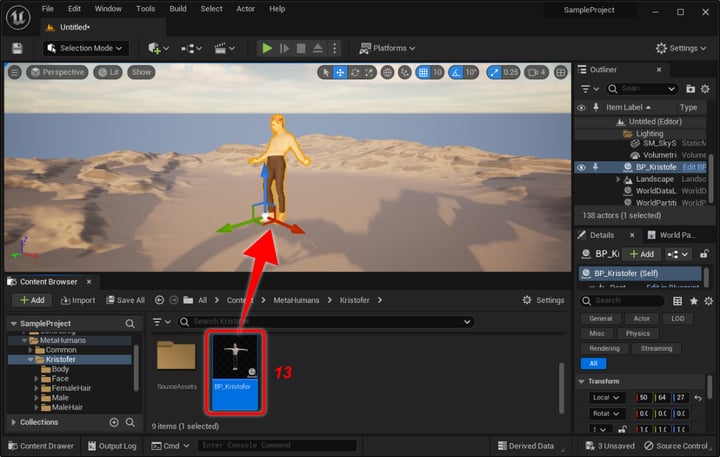
The Metahuman animates on the scene according to motion data.
The Metahuman can now be used.


