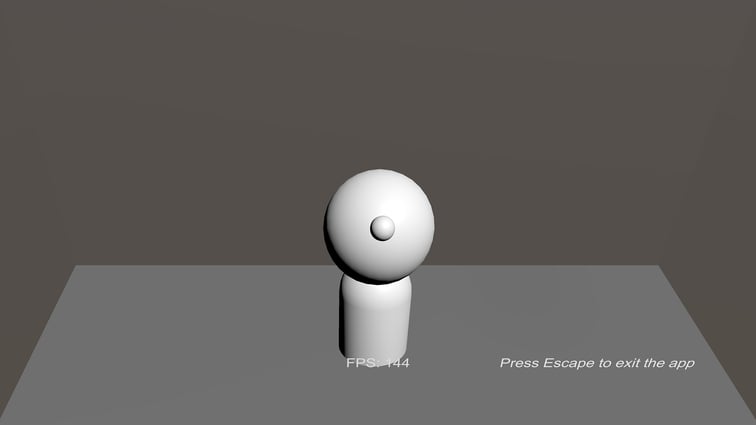








Track the users eye position and apply to a 3D object in Unity
This page describes how to track the users eye position and apply to a 3D object to follow the user’s movements on the Spatial Reality Display in Unity.
You can also try it with the sample included in the Plugin.
Prerequisites
- Setup your Spatial Reality Display, if not, see: Setup Spatial Reality Display,Setup Spatial Reality Display Settings.
- Set up your Unity project installed SRDisplay UnityPlugin, if not, see: Setup for Unity.
Let’s create a content like LookAt in the sample app
-
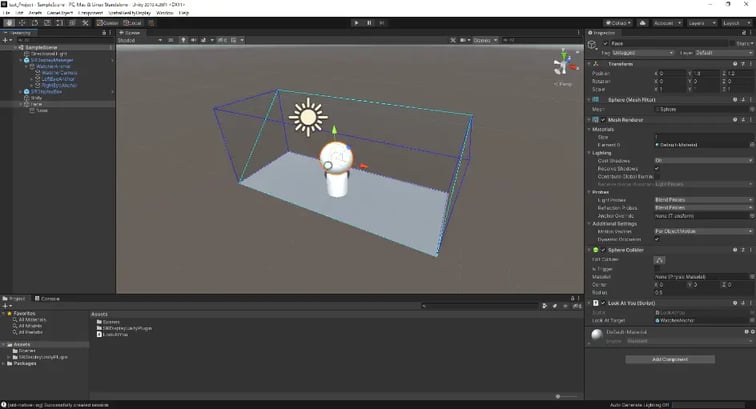
Put SRDisplayManager Prefab in your scene Hierarchy with reference to here.
SRDisplayBox Prefab in Assets / SRDisplayUnityPlugin / Runtime / Prefabs is also placed here.

- Create a character using 3D objects, adjusting them to fit within SRDisplayManager Prefab.

- Add C# script. Open Script file you have added and edit it as follows.
Make sure that the file name and class name of the added script are the same.
- Attach the C# script you have created to the face part of object.
Specify WatcherAnchor to be a child object of SRDisplayManager in “Look At Target”. WatcherAnchor shows the user's head position at runtime. (Read more here.)
- Let's run the application. The character will turn its head to match the position of your face.