Track the users eye position and apply to a 3D object in Unreal Engine.
This page describes how to track the users eye position and apply to a 3D object to follow the user’s movements on the Spatial Reality Display in Unreal Engine Blueprint.
Here is a sample app for you to try.
Prerequisites
- Setup your Spatial Reality Display, if not, see: Setup Spatial Reality Display and Setup Spatial Reality Display Settings.
- Epic Games Launcher and Unreal Engine are installed.
Let’s create a content like LookAt in the sample app
-
Create a new Unreal Engine project using a Spatial Reality Display Template as a reference here.
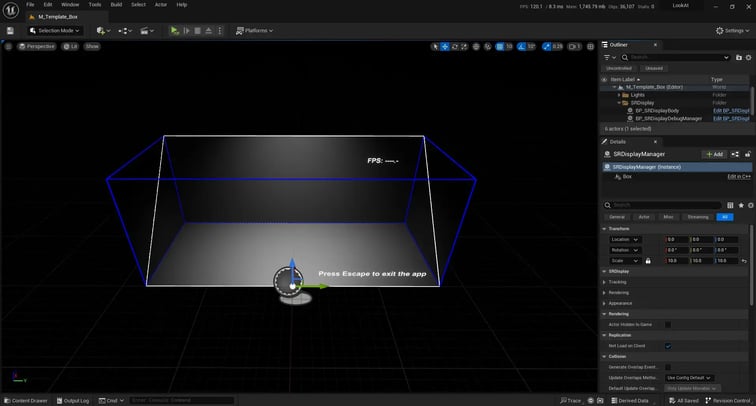
- Add new Blueprint. Select “Actor” as the parent class.
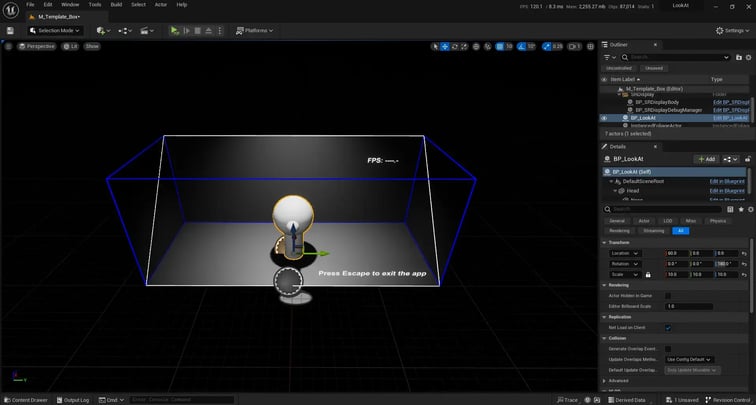
- Open Viewport of Blueprint created in step 2, put the circle and cylinder, and make the character.
.webp?width=756&height=408&name=CreateCharacter%20(1).webp)
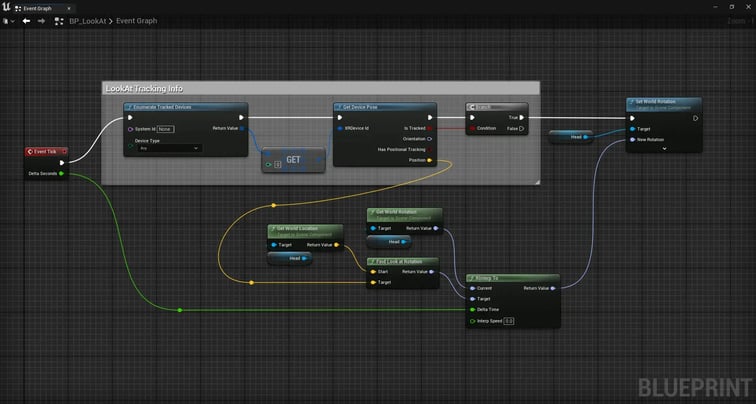
- Click on Event Graph, add nodes to create the graph as shown in the image.
- Put Blueprint you created on Level and adjust its size, position, and orientation.
- When you run the project in VR Preview, the character will turn its head to match the position of your face.
.webp?width=756&height=504&name=sample-lookat%20(1).webp)
Learn more about Blueprints.
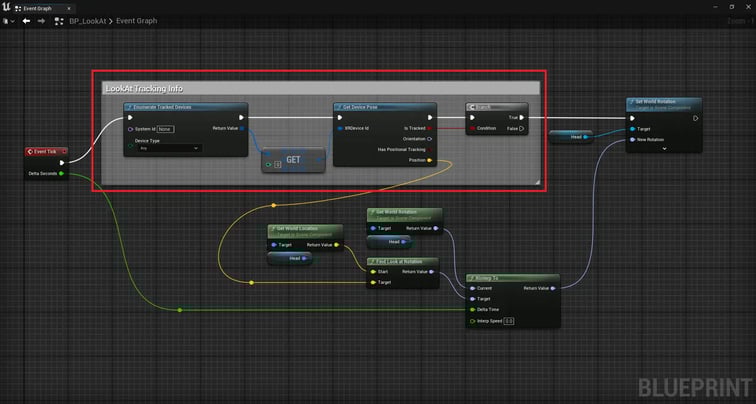
The position of the face is obtained using the node in the red frame in the image.
- Enumerate Tracked Devices
You can get the connected XR devices.
In this case, we are using it to get XRDevice id of Spatial Reality Display. - Get Device Pose
You can get the position of the XR device specified by XRDevice id.
In this case, we are using it to get the position of the face.